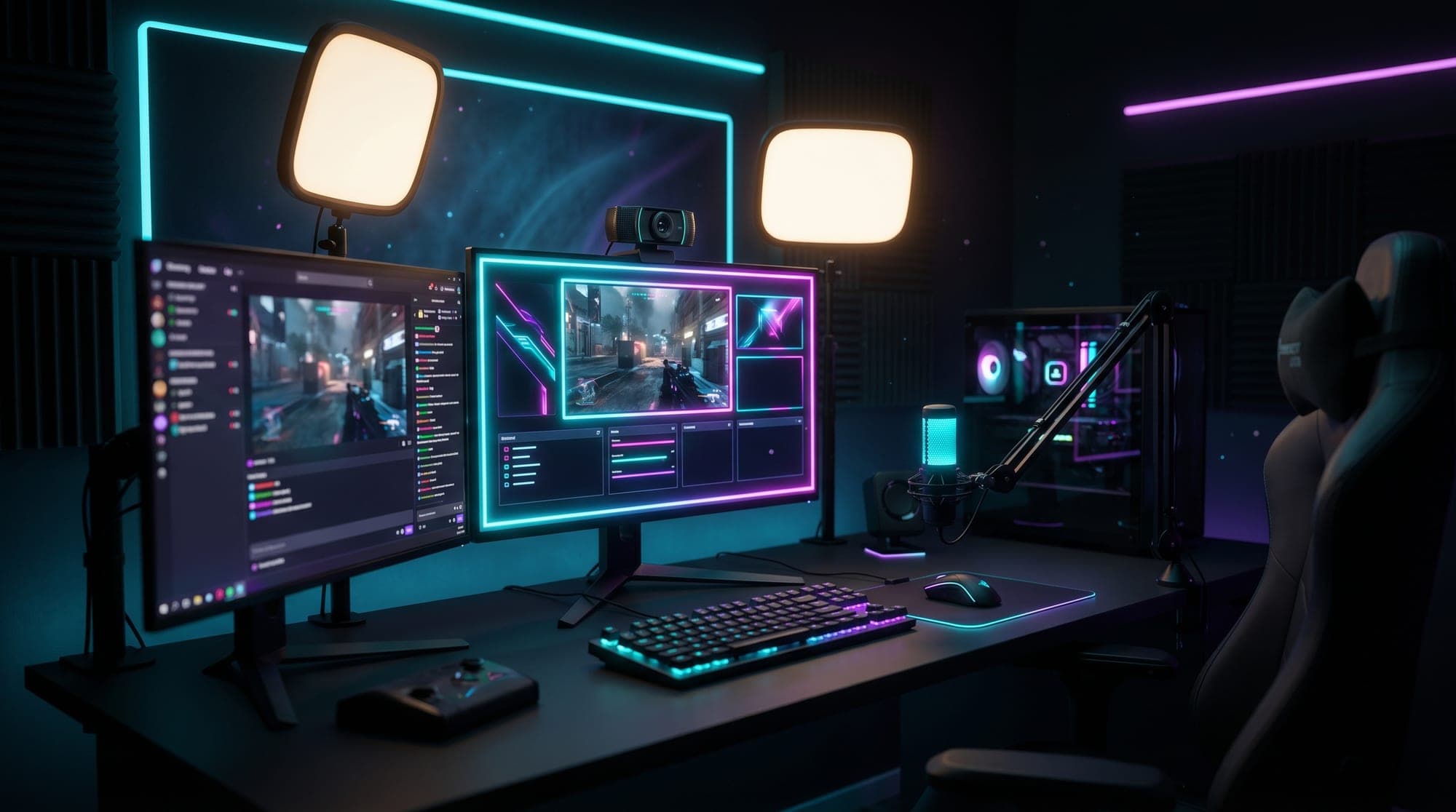
A new viewer decides whether your stream looks legit in about five seconds. Not five minutes - five seconds. Before you've said a word, they've clocked your layout, your webcam, your alerts and your overall vibe, and they've already half-decided whether you're worth a follow.
Here's the good news: looking professional has almost nothing to do with an expensive setup. Some of the biggest, most polished channels started on a webcam and a borrowed mic. What separates a stream that looks pro from one that looks thrown-together isn't budget - it's a handful of deliberate choices, most of which are free. This is the complete checklist for 2026, in the order that actually matters.
First, get the technical basics right
None of the design work lands if your stream is a blurry, stuttering mess. So nail the fundamentals first.
For Twitch, aim for a bitrate of 4,500-6,000 Kbps at 1080p, or drop to 720p if your upload can't keep up - a crisp 720p stream looks far more professional than a 1080p one that constantly buffers. Run 60 FPS for fast games, 30 FPS is fine for slower or Just Chatting content. You'll want a minimum upload speed of around 6 Mbps with some headroom to spare, and - this is the one people skip - use a wired ethernet connection instead of Wi-Fi. Wi-Fi is the number-one cause of dropped frames, and dropped frames are the fastest way to look amateur.
If your GPU supports it, encode with hardware (NVENC on NVIDIA, or your GPU's equivalent) so your game doesn't fight your stream for resources. Test a private stream, watch it back, and only then move on.
Sound matters more than you think
Viewers will forgive average video. They will not forgive bad audio. Muffled, echoey or hissy sound is the single biggest reason someone clicks away, and it's usually the easiest thing to fix.
You don't need a studio. A decent USB microphone gets you 90% of the way there; an XLR mic into an interface is the upgrade path once you're serious. More important than the mic itself is the room: kill echo by adding soft surfaces - curtains, a rug, even a blanket off-camera - and turn on a noise-suppression filter in OBS or your streaming app to cut fan and keyboard noise. Clean, clear audio instantly reads as "this person knows what they're doing."
Light your face properly
Good lighting is the cheapest professional upgrade there is. The classic mistake is sitting with a window or bright light behind you, which turns your face into a silhouette.
Flip it around: put your light in front of you. The simple pro setup is two light sources, one on each side of your webcam - a ring light or a pair of key lights - so your face is evenly lit with no harsh shadows. Even two cheap desk lamps aimed at you is a massive step up from a single overhead bulb. Well-lit faces look healthy, sharp and intentional; poorly lit ones look like a hostage video.
Sort out your webcam and background
If you're still on a laptop's built-in camera, upgrading to almost any dedicated webcam is a visible jump in quality. Position it near eye level, angled slightly down rather than up your nose, and frame yourself so there's a little headroom.
Behind you, keep it simple. A tidy, deliberately decorated background says "I set this up on purpose." A pile of laundry says the opposite. If your room isn't broadcast-ready, a green screen lets you cut yourself out cleanly and drop in a virtual background - and it makes an animated webcam frame look seamless, which brings us to the part that actually does the heavy lifting.
The single biggest upgrade: a matching overlay
Here's the thing every "expensive gear" article buries: the fastest way to jump from amateur to professional is visual cohesion - and it costs a fraction of a new camera.
Think about the channels you consider "pro." Their webcam frame, their alerts, their chat box, their panels and their scene transitions all look like they belong to the same brand. Nothing clashes. That cohesion is what your brain reads as "professional," and it's the one thing a beginner can control completely, today, without any gear at all.
The trap is grabbing a free webcam frame from one place, an alert from another and a random chat widget from a third. Individually they might look fine; together they look like a ransom note. A matching overlay pack solves this in one move: every element - animated screens, alerts, a webcam overlay, a chat overlay and your Twitch panels - is designed together, in one style, so your whole channel instantly reads as one brand - a pirate ship set stays pirate from webcam frame to alerts, a cyberpunk set stays cyberpunk.
If you want to feel the difference before spending anything, try a free screen maker and load it in. Seeing your own stream suddenly match is usually the moment it clicks. And your alerts matter here too - a follow or sub alert that matches your overlay (instead of the default StreamElements look everyone recognises) is a small detail that quietly signals you're not a beginner.
Build proper scenes, not just gameplay
A professional stream isn't one static screen - it's a small set of scenes you switch between. At minimum you want:
- A Starting Soon screen so early viewers land on something intentional instead of dead air.
- Your main gameplay scene with webcam, alerts and chat.
- A Just Chatting layout with a bigger webcam for talk segments.
- A BRB and an Ending / Offline screen to bookend the stream.
When all of those share the same look - same colours, same animation, same frames - switching between them feels like watching an actual broadcast, not a random desktop. That's the "TV channel" feeling that makes people stick around.
Pick a look and commit to it
Consistency is the most underrated word in streaming. Pros pick a visual identity and hammer it everywhere.
The practical rule: choose three main colours and two fonts, and use only those - across your overlay, your panels, your offline banner, even your YouTube thumbnails and social posts. If you're not sure where to start, our guide to stream overlay colour palettes walks through picking a scheme that fits your content. Themed packs make this effortless because the palette is already decided for you - whether that's a cyberpunk neon look for FPS grinding or a soft cute & kawaii set for cozy streams. Whatever you pick, the goal is that a viewer could recognise your channel from a single screenshot.
Less is more
New streamers tend to overload the screen - five widgets, three chat boxes, a goal bar, a spinning logo and notifications firing constantly. It reads as cluttered, not professional.
Strip it back. Show your gameplay, your webcam, and one or two overlay elements that genuinely give useful information (like recent follower or a goal). Everything on screen should complement your content, never fight it. Position your webcam and overlays so they never cover important in-game UI - nothing screams beginner like a health bar hidden behind an alert.
Test before you go live
Every time you change your layout, run a quick private test stream and watch it back on another device. Check that text is readable, alerts don't cover your face, audio is balanced and nothing's cut off at the edges. Close background programs you don't need, keep an eye on your CPU, and - when you can - ask a couple of viewers for honest feedback. Small fixes compound.
The honest truth about looking professional
You can spend two thousand euros on a camera and lighting and still look amateur if your overlay is a mismatched mess. And you can look genuinely professional on a modest setup if your stream is clean, well-lit, clear-sounding and visually cohesive.
Gear helps at the margins. Cohesion and consistency are the lever - and they're the cheapest part of the whole equation. Sort your audio, light your face, tidy your background, then give your channel one matching visual identity and use it everywhere.
Start with a free screen maker to see the difference on your own stream, and when you're ready to commit to a look, browse the full collection and pick the one that already feels like your channel.