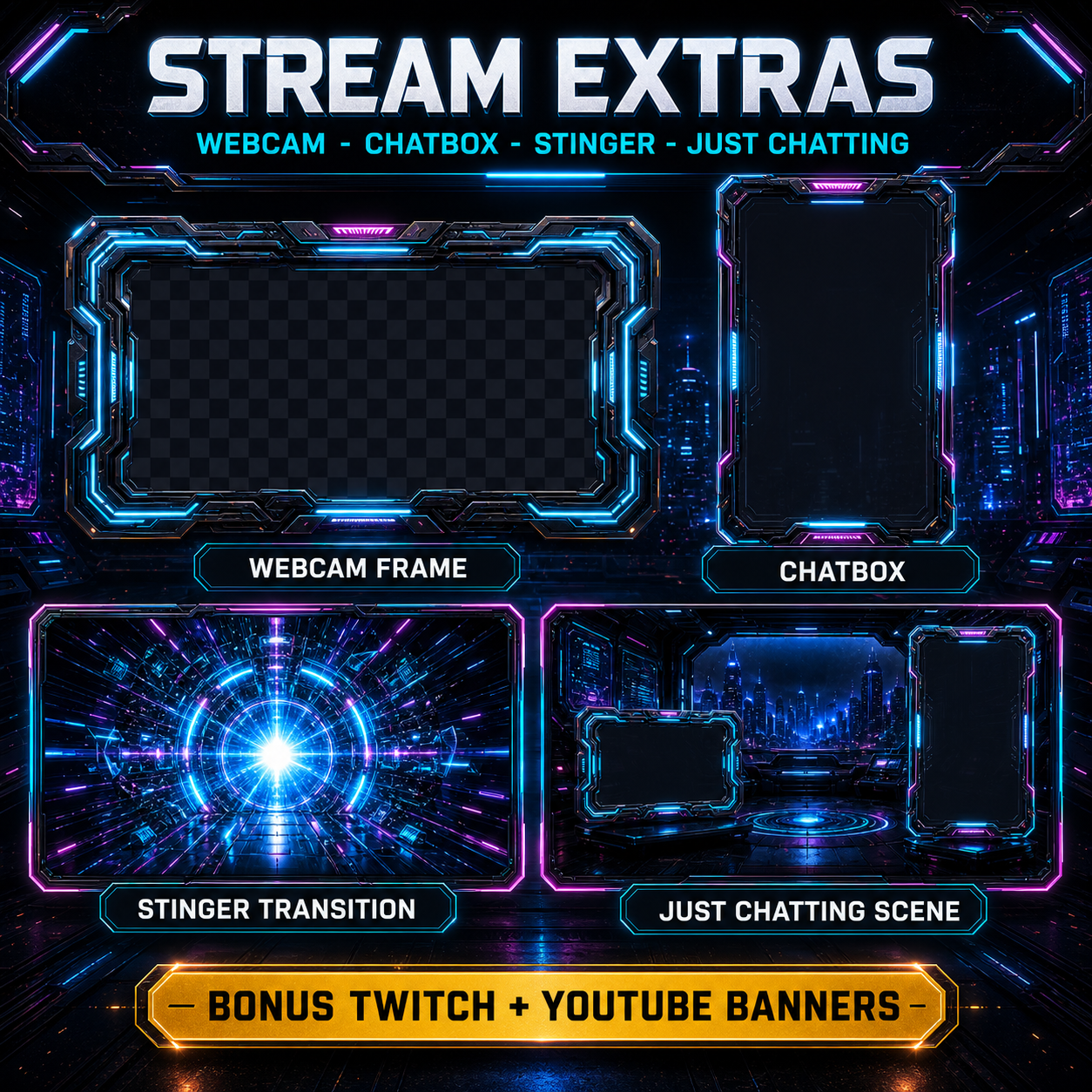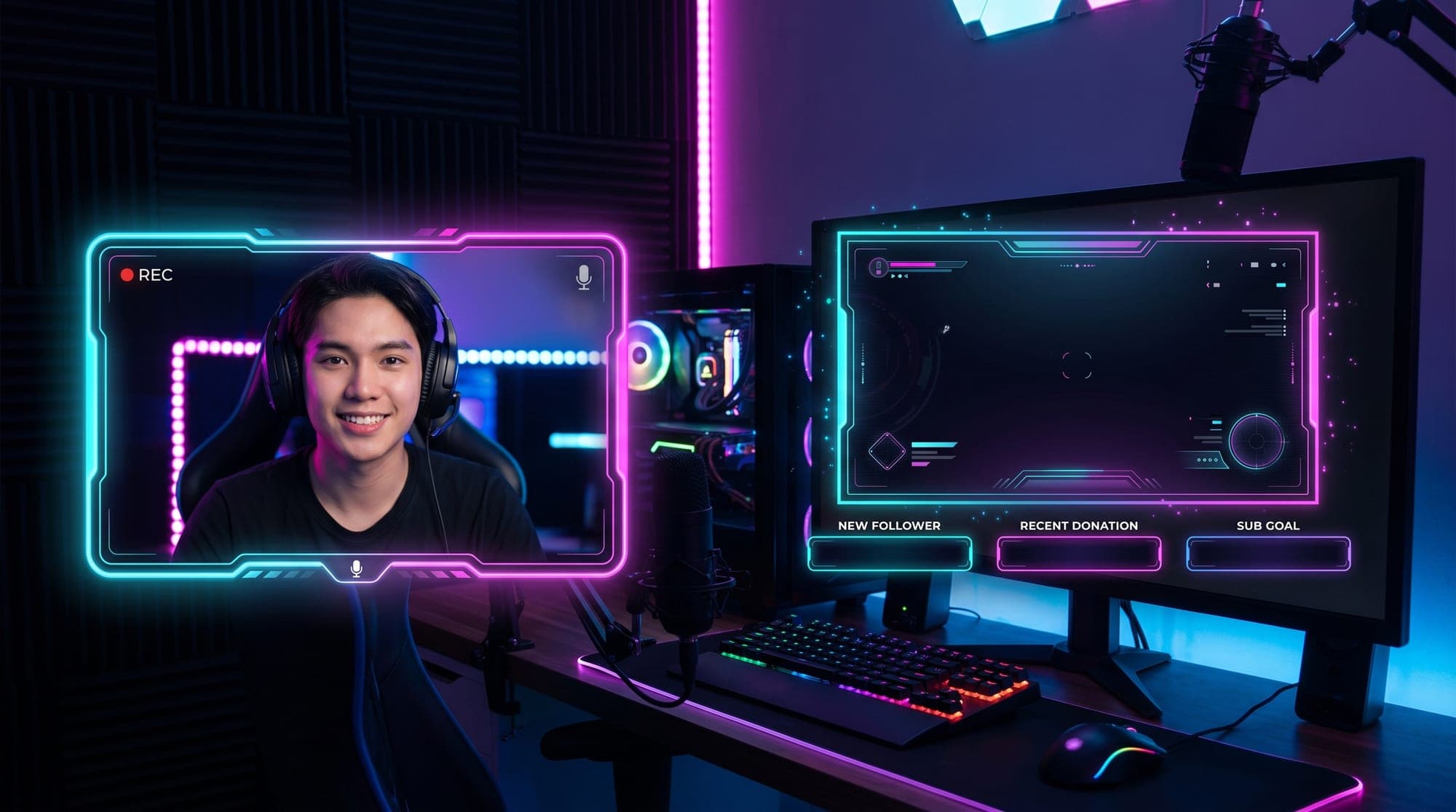
A webcam overlay is a frame or border around your facecam. It is one of the simplest ways to make the camera area feel intentional and connected to the rest of your stream design.
Adding one in OBS is straightforward once the source order is correct. This guide covers the setup, animated borders, green screen use, practical sizing and what to check before you go live.
What is a webcam overlay?
A webcam overlay is a graphic that sits around (or over) your camera feed - usually a frame, border, or themed shape that matches the rest of your stream. People call it a few different things: a webcam frame, a facecam border, a camera frame overlay. They all mean the same thing.
There are two kinds you'll run into:
- Static webcam borders - a simple PNG image with a transparent center. Lightweight, no animation.
- Animated webcam borders - a looping video (usually a WEBM file with alpha transparency) with subtle motion: a glowing edge, drifting particles, a pulsing neon outline.
Why bother? Three quick reasons. It makes your facecam look like part of a designed layout instead of a random box. It hides the hard rectangular edge of your camera, which always looks amateur. And it ties your webcam into your branding, so your screens, alerts, panels and cam all feel like one set. That cohesion is exactly what separates a channel that looks "new" from one that looks established.
How to add a webcam overlay in OBS
Here's the part that trips people up: the order of your sources matters. OBS renders from the bottom up, so whatever sits higher in the Sources list appears on top. Your camera goes on the bottom, your frame goes on top.
Step by step:
- In the Sources panel, click the + button and choose Video Capture Device. Name it "Webcam", pick your camera from the dropdown, and click OK. This is your base layer.
- Click + again and choose Media Source (for an animated WEBM border) or Image (for a static PNG). Name it "Webcam Frame".
- For a Media Source, click Browse and select your .webm file, then tick Loop so it plays continuously. Click OK.
- In the Sources list, make sure the frame sits above the Video Capture Device - drag it up if needed.
- Select the frame in the preview and drag it so its transparent opening lines up with your camera feed. If the sizes don't match, right-click the source and use Transform → Edit Transform to set the position and size exactly.
That's it - your camera now sits neatly inside the frame. One tip: if you need to crop your camera feed to fit (for example, to make it square), hold Alt while dragging the red handles on the source. Alt-dragging crops instead of stretching, so your face doesn't get squished.
Animated webcam borders and WEBM alpha
If you want movement - a glowing edge, floating sparks, a neon pulse - you'll be using an animated webcam border, and the format that makes it work cleanly is WEBM with an alpha channel.
Shops and search results call this same thing half a dozen names: animated webcam border, animated camera overlay, cam frame, facecam overlay. They all mean one file that sits over your camera feed and moves. Pick whichever word you like, the setup below is identical.
Here's why WEBM alpha matters: it carries true transparency inside the video file itself. That means the center (where your face goes) and the area around the frame can remain genuinely see-through, with no background box. Add it as a Media Source, enable Loop, and no chroma key or browser source is needed for the frame itself.
A common mistake is grabbing an MP4 instead of a WEBM. MP4 doesn't support transparency, so you'll end up with an ugly black or white box around your frame. If your animated border shows a solid background, that's almost always the problem - you've got the wrong file format. Look for files labelled WEBM or "alpha" / "transparent".
The other trap is GIF. A GIF pixel is either fully visible or fully invisible, with nothing in between, and the whole file is capped at 256 colours. So a "transparent" GIF border gives you jagged stair-stepped edges and visible banding in every glow, which is the usual reason a frame looks fine in a shop preview and cheap once it's live over gameplay. If an animated border is only offered as a GIF, that tells you what you need to know. We go through every transparent format, and which parts of a layout should move at all, in animated vs static stream overlays.