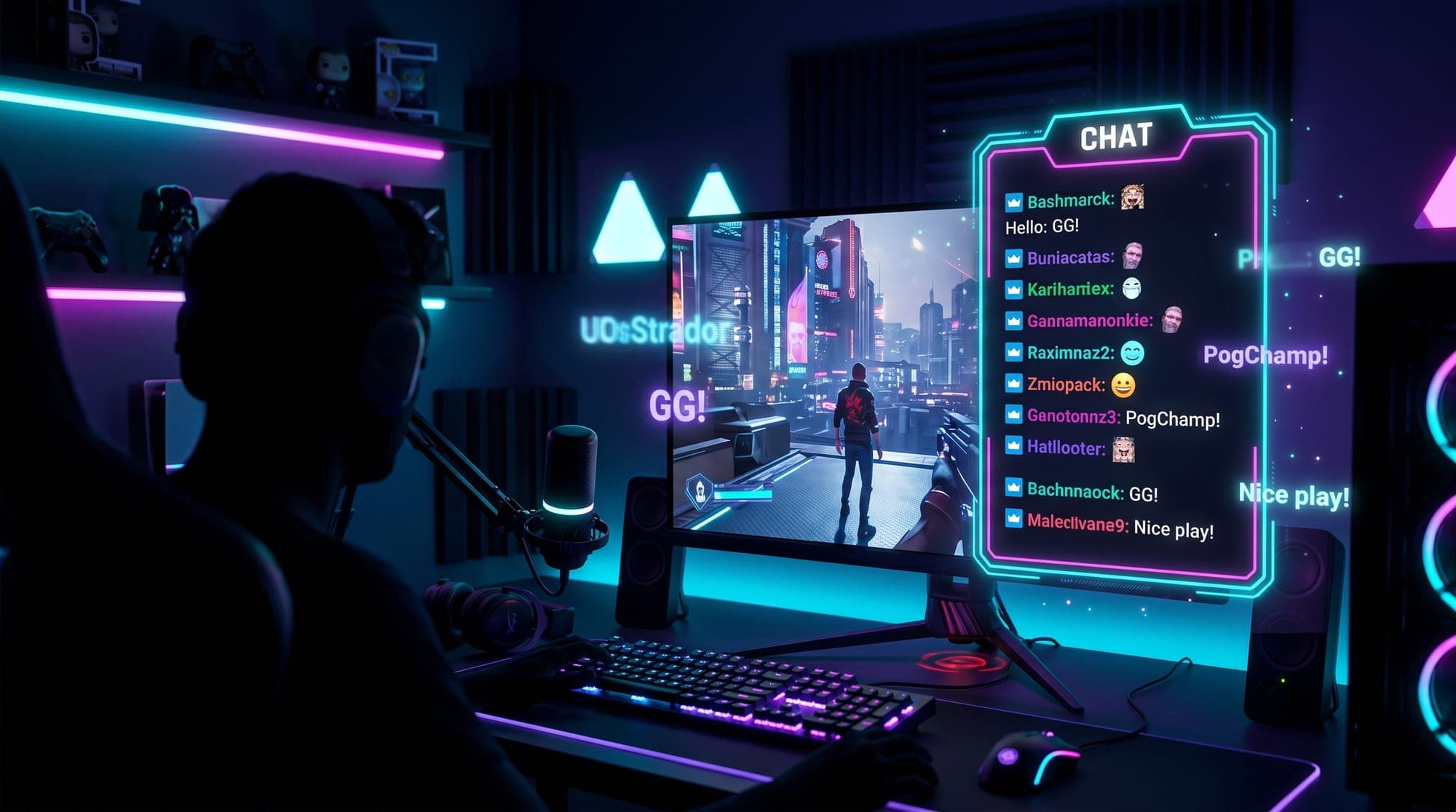
Adding a chat overlay to your stream is one of the highest-impact changes you can make - it pulls your community right into the action and makes your VODs and clips far more watchable. The good news: it takes about five minutes, and you've got several ways to do it depending on whether you use OBS on its own, Streamlabs, or StreamElements.
This guide covers all of them, step by step, with the exact settings that actually work. Let's get your chat on screen.
What is a chat overlay?
A chat overlay (sometimes called a chat box or "just chatting" overlay) is a transparent panel that shows your live Twitch chat directly inside your stream - over your gameplay, beside your webcam, wherever you want it. Instead of viewers only seeing chat in the sidebar, your messages appear on screen.
Why bother? Two big reasons:
- It boosts engagement. When people see their messages pop up on screen, they chat more. It turns passive viewers into participants.
- It makes your VODs and clips better. A recorded stream or clip that shows the conversation is far more entertaining than one where you're reacting to chat nobody can see.
It works on Twitch, and the same methods apply to YouTube and Kick. Whether you want a plain text box or a themed chat overlay that matches the rest of your branding, the setup is the same - you just swap the design.
How to add a chat overlay in OBS
There are actually three native ways to get Twitch chat into OBS before you even touch a third-party widget:
- Twitch account integration. Go to File → Settings → Stream and sign in with your Twitch account. OBS then gives you built-in chat and stream-info docks.
- Custom Browser Docks. Go to View → Docks → Custom Browser Docks and paste your Twitch chat popout URL. This shows chat in your OBS workspace (handy for you), but not on the stream itself.
- Browser Source (the one you want for an on-screen overlay). This is how you put chat on the stream for viewers to see. You add a Browser source pointing to a chat widget URL.
For an actual on-screen chat box, you'll use a Browser Source with a widget URL from Streamlabs or StreamElements (covered below). The basic flow in OBS is always the same:
- In the Sources panel, click + and choose Browser.
- Name it "Chat Overlay" and click OK.
- Paste your chat widget URL.
- Set the dimensions, then position it where you want.
A quick tip: chat widgets have a transparent background by default, so they sit cleanly over your gameplay. If your chat box shows a solid background, you've probably pasted the wrong URL (a channel page instead of the widget URL).
Setting up a Streamlabs chat overlay
If you use Streamlabs, the Chat Box widget is the fastest route:
- Log into the Streamlabs dashboard.
- Click Chat Box in the left-hand menu.
- Customize the look - theme, font, text size, and the message hide delay (how long messages stay before fading).
- Click Copy to grab the widget URL.
- In OBS, add a Browser source and paste that URL.
That's it - your chat appears on stream. If you're using Streamlabs Desktop instead of OBS, the Chat Box is even simpler: it's a built-in widget you add straight from the editor.
Setting up a StreamElements chat box
StreamElements works through its overlay editor. Here's the exact process:
- Go to StreamElements and open Streaming Tools → Overlays.
- Click New Overlay, set the resolution to 1080p, and press Start.
- In the bottom-left, click the + icon and choose Stream Tools → Your Stream's Chat.
- In the top-left settings, change the theme to Custom, make sure Show Messages is enabled, and set Message Delay to 0.
- Name it and Save, then click the icon at the top to copy the Widget URL.
- In OBS, add a Browser source, paste the URL, and set the size.
For dimensions, a chat box around 450px wide × 900px tall (for a tall side panel) or roughly 541 × 670 (for a more compact box) works well - adjust to fit your layout. A text size around 25 with a bold font like Impact keeps it readable over busy gameplay.
Creating a custom Twitch chat box
Want your chat to match your stream's theme instead of a plain default box? That's where a custom Twitch chat box comes in. Both Streamlabs and StreamElements let you customize colors, fonts and animations - but for a truly cohesive look, a themed chat overlay built to match your screens, alerts and panels is the way to go.
That's exactly what every NeonStreamLab pack includes: a chat overlay designed to sit naturally inside your layout, in the same style as the rest of your stream. A few examples:
You combine the pack's chat frame design with your Streamlabs or StreamElements widget underneath, and the result looks intentional instead of bolted on.
Adding an in-game chat overlay
An in-game chat overlay keeps chat visible right over your gameplay rather than tucked in a corner. The setup is the same Browser Source method - the trick is just placement and styling:
- Position the chat box where it won't cover important game UI (health bars, minimaps).
- Keep the background transparent and the font readable at a glance.
- Use a message hide delay so old messages fade out and the box doesn't clutter your screen during intense moments.
This works the same on Twitch, YouTube and Kick - it's all driven by the same widget URL in OBS.
Free chat overlay options
You don't have to pay anything to get started. The Streamlabs Chat Box and StreamElements chat widget are both free, and they're genuinely good. Tools like KapChat and the FrankerFaceZ embed (add ?ffz-embed to your chat URL) are free alternatives too.
Free chat boxes are perfect when you're starting out. The only thing they don't give you is a design that matches the rest of your stream - that's where a themed pack comes in later. If you want a fully matching look, browse the overlay packs and see how a cohesive chat overlay feels on your own stream.
Common problems (and quick fixes)
- Chat isn't showing up. Make sure you pasted the widget URL, not your channel page. Try clearing OBS's browser cache (right-click the source → Properties → refresh).
- Background isn't transparent. You're using the wrong URL - chat widgets are transparent by default.
- Messages too small on mobile. Most viewers watch on phones. Bump up the font size and test at a small preview size.
- Chat covers my gameplay. Reorder your sources and shrink the box, or move it to a side panel.
- Always test on a private stream first before going live with a new overlay.
Get a chat overlay that matches your stream
A chat overlay is one of the quickest wins for a more interactive, professional-looking channel - and the free widgets get you 90% of the way there. When you're ready for a chat box that matches your whole setup (screens, alerts, webcam frame and panels), browse our chat overlays, or browse the overlay packs to see how a matching set looks.
See you in chat. 💬