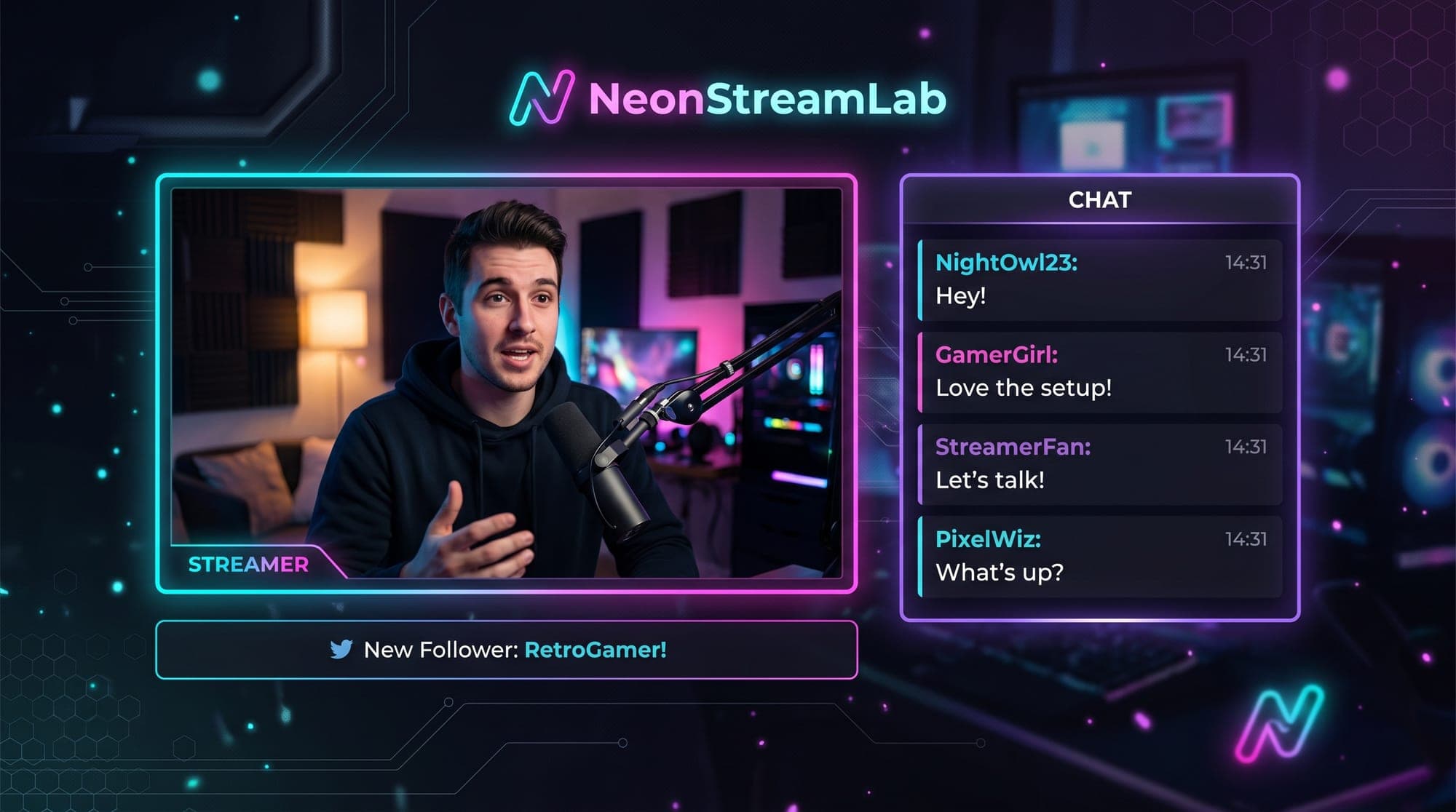
Just Chatting is one of the biggest categories on Twitch - and it's the one where your overlay matters most. There's no game to look at, so the entire screen is you, your webcam and your chat. Get the layout right and your stream feels like a proper talk show. Get it wrong and it looks like a webcam floating in an empty void.
This guide covers exactly how to build a Just Chatting overlay: what makes a good layout, how to set the scene up in OBS step by step, and the free vs animated options. Let's make your talk streams look intentional.
What is a Just Chatting overlay?
A Just Chatting overlay (sometimes called a talk-stream or "just chatting screen") is a layout built specifically for streams where you are the content - chatting, reacting, doing IRL or podcast-style shows. Unlike a gaming overlay that frames a small webcam in the corner, a Just Chatting overlay puts your camera front and center and gives your chat real space on screen.
The difference matters. In a gaming stream, the game is the star and your face is a small add-on. In Just Chatting, there's no game - so your webcam frame, your background and your chat box are the entire visual. A dedicated Just Chatting overlay is designed around that.
What makes a good Just Chatting layout
The whole layout is built around one idea: you and your chat are the show. A few principles that actually work:
- A big webcam. Your camera should take up most of the screen - you're the content, so the camera leads the layout. A large, framed webcam reads as intentional; a tiny corner cam looks like an afterthought.
- Chat gets real space. Put your chat box on the opposite side to your camera (or clearly beside it), where viewers can actually read it without it covering your face. Chat is paramount for a talk stream - people want to see the conversation.
- A clean background. No busy game HUD to compete with. A simple, on-brand background keeps the focus on you.
- Personality over clutter. Choose a look that matches your vibe. When the content is you building rapport with viewers, your overlay should make your personality shine, not bury it under effects.
How to set up a Just Chatting scene in OBS
Here's the build, step by step. The key thing to remember: OBS layers sources from top to bottom in the list, so your background goes at the bottom and everything else stacks on top. Work at 1920×1080.
- Create a new scene - in the Scenes panel, click + and name it "Just Chatting".
- Add your background - click + in Sources, choose Image (or Media Source for an animated background), and pick a full-screen background that fills the canvas.
- Add your webcam - click +, choose Video Capture Device, select your camera. Resize it large and place it center or to one side.
- Add the webcam frame - add your frame as an Image (static PNG) or Media Source (animated WEBM), and position it so its opening lines up around your camera.
- Add the chat box - click +, choose Browser, paste your chat widget URL, and set the size to around 400×600. Place it on the opposite side to your camera.
- Layer everything correctly - in the Sources list, make sure the order top-to-bottom is: panels/alerts, chat box, webcam frame, webcam, background. Drag sources up or down until it looks right.
One handy tip: if your chat box shows a white box, add this to the Browser source's Custom CSS to make it transparent:
body { background-color: rgba(0, 0, 0, 0); margin: 0px auto; overflow: hidden; }