Stream alert sound customization is the process of uploading and assigning unique audio files to specific event triggers in your streaming software, so viewers hear a distinct sound every time someone follows, subscribes, or donates. Platforms like Streamlabs and StreamElements handle this through their Alert Box widget settings, where you replace default sounds with your own clips. Understanding how stream alert sound customization works gives you direct control over your channel's auditory identity. Done right, it turns routine notifications into recognizable moments that keep your audience engaged and coming back.
How does stream alert sound customization work step by step?
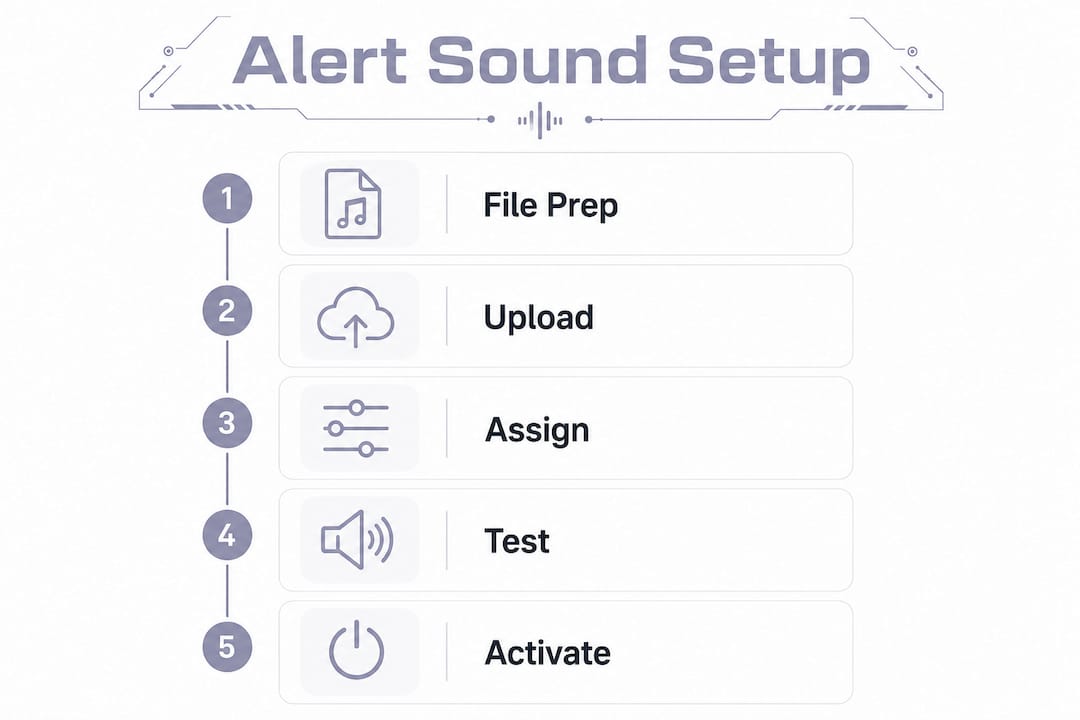
Alert sound customization works by uploading a supported audio file to your alert widget and assigning it to a specific event type. The process is straightforward once you know where to look.
- Open your alert widget settings. In Streamlabs, go to the Alert Box widget inside your Dashboard. In StreamElements, find the Alert Box under your overlay editor.
- Select the event type. Choose which notification you want to customize: follower, subscriber, donation, raid, or host. Each event gets its own sound slot.
- Upload your audio file. Supported audio formats include MP3, WAV, and OGG. MP3 works for most situations. WAV gives you higher quality if file size is not a concern.
- Set the volume level. Most platforms let you adjust the alert volume independently from your main stream audio. Start at 70-80% of your overall stream audio level to avoid startling your viewers.
- Test the alert. Both Streamlabs and StreamElements include a test button inside the alert settings. Always fire a test before going live to confirm the sound plays correctly and at the right volume.
Pro Tip: Name your audio files clearly before uploading, for example "follow_alert_v2.mp3". This saves you time when you want to swap sounds later without hunting through a messy asset library.
Streamlabs OBS lets you manage and test sounds directly within the Dashboard, so you never have to guess whether your upload worked. Always confirm the sound plays before your stream goes live.
What makes a good custom alert sound?
Choosing the right sound is where most streamers get it wrong. The goal is a clip that grabs attention without annoying your audience or drowning out your voice.
- Keep it short. Alert sounds should be 3-5 seconds long. Longer clips interrupt your conversation and frustrate viewers who are trying to follow what you are saying.
- Use clean, noise-free audio. A muffled or distorted sound signals low production quality. High-quality, noise-free sounds reinforce your channel's credibility and make the alert feel intentional.
- Balance the volume. Set your alert volume at 70-80% of your overall stream audio. Sounds that are too loud startle viewers. Sounds that are too quiet get ignored.
- Apply dynamic range compression. Expert streamers use compression on alert sounds to keep them punchy and audible without clipping. This technique keeps the alert clear inside a busy audio mix.
- Edit before uploading. Audacity is a free audio editor that lets you trim, normalize, and compress sounds before you upload them. A two-minute edit in Audacity can make a mediocre clip sound polished.
Pro Tip: Record a short custom voiceover for your donation alert. Something like "Wow, thanks for the support!" in your own voice creates a personal moment that generic sounds can never replicate.
The ideal alert sound stands out from your background music and game audio without clashing with either. Think of it as a short audio signature, not a full sound effect.
How do you manage alert frequency to avoid viewer fatigue?
Alert spam is one of the fastest ways to lose viewers. When notifications fire back to back, your stream turns into a wall of noise and your audience tunes out.
The solution is cooldowns. A cooldown is a delay you set between alerts of the same type. A 30-second cooldown between alerts of the same type prevents audio spam during peak stream events like raids or donation spikes. That gap gives each alert room to breathe and keeps the moment feeling special.
Here are the key settings to configure:
- Cooldown duration. Set a minimum of 30 seconds between alerts of the same type. During a raid with 50 new followers, this prevents 50 consecutive sounds from firing at once.
- Alert queue. Alert platforms queue simultaneous notifications and play them sequentially. This keeps your stream flow intact even during busy moments.
- Alert duration. Keep each alert display time short. A 4-second sound paired with a 5-second animation is plenty. Longer display times stack up fast when you have a queue.
- Priority settings. Some platforms let you assign priority levels to different alert types. Subscriptions and donations can fire immediately while follow alerts wait in the queue.
Cooldowns do not make your alerts less exciting. They make each one feel more significant. A single well-timed sound lands harder than five sounds playing over each other.
How do custom alert sounds build your streaming brand?
Sound is a psychological trigger. Your viewers do not just see your stream. They hear it. The right alert sound becomes an auditory icon tied to your channel's personality.
"Custom sound alerts engage viewers by creating recognizable auditory icons for specific interactions, reinforcing a streamer's branding and mood." - StreamHub.world
A cyberpunk streamer might use a glitchy synth sting for subscriptions. A cozy gaming channel might use a soft chime or a gentle piano note. A meme-heavy streamer might use a recognizable audio clip that their community already loves. Each choice tells your audience something about who you are before you say a word.
Using voiceovers, memes, or music clips as alert sounds creates recognizable auditory cues that viewers associate with your channel. That recognition builds loyalty. When a regular viewer hears your donation sound, they feel like they are part of something specific to your community.
The real power comes from pairing sound with visuals. A matching animated overlay and alert sound create a complete sensory moment. For example, a fantasy-themed stream with a magical sparkle animation and a harp sting feels cohesive. A patchwork of mismatched sounds and visuals feels unfinished. Streamers who add a Twitch overlay to OBS alongside their custom sounds get the full effect of a branded channel identity.
Viewers also participate more when alerts feel rewarding. A satisfying, unique sound after a donation makes the donor feel recognized. That feeling encourages repeat interactions and builds a tighter community over time.
Key Takeaways
Stream alert sound customization works best when you combine the right audio format, proper volume balance, smart cooldown settings, and sounds that reflect your channel's personality.
| Point |
Details |
| Use supported formats |
Upload MP3, WAV, or OGG files to your alert widget for reliable playback. |
| Keep sounds short |
Aim for 3-5 seconds per alert to avoid disrupting stream flow. |
| Balance your volume |
Set alert volume at 70-80% of overall stream audio to avoid startling viewers. |
| Set cooldowns |
A 30-second cooldown between same-type alerts prevents audio spam during busy moments. |
| Match sound to brand |
Choose sounds that reflect your channel's theme to build a recognizable auditory identity. |
My honest take on alert sound systems
I have watched a lot of streamers put serious effort into their visuals and then completely ignore their audio alerts. They grab a random sound effect, upload it at full volume, and call it done. The result is a jarring noise that interrupts their stream every few minutes and makes the whole production feel amateurish.
The biggest mistake I see is skipping the test phase. Testing alerts in a simulated environment before going live catches volume mismatches, file errors, and timing issues that you simply cannot predict by looking at settings alone. Fire every alert type at least once before your stream starts. Then adjust.
The second mistake is treating all alert types the same. Your donation alert should feel bigger than your follow alert. Use a longer, more dramatic sound for high-value events and a shorter, lighter sound for routine ones. This hierarchy tells your audience which moments matter most without you having to say anything.
Coordinating your audio and visual alerts is where the real payoff is. A well-designed animated overlay paired with a matching sound creates a moment your viewers remember. That combination is what separates a channel that feels professional from one that feels thrown together. If you want to see how that coordination looks in practice, the overlay import workflow for Streamlabs OBS is a solid place to start.
Alert sound customization is not a one-time setup. Revisit your sounds every few months. What felt fresh six months ago might feel stale now. Your community evolves, and your audio identity should evolve with it.
Neonstreamlab overlays that pair with your custom alerts
Your alert sounds deserve visuals that match. Neonstreamlab makes animated overlay packs for Twitch, YouTube, and Kick that work directly in OBS, Streamlabs, and StreamElements. Every pack downloads instantly and includes original copyright-free audio, so you are not scrambling for sounds that are safe to use on stream.
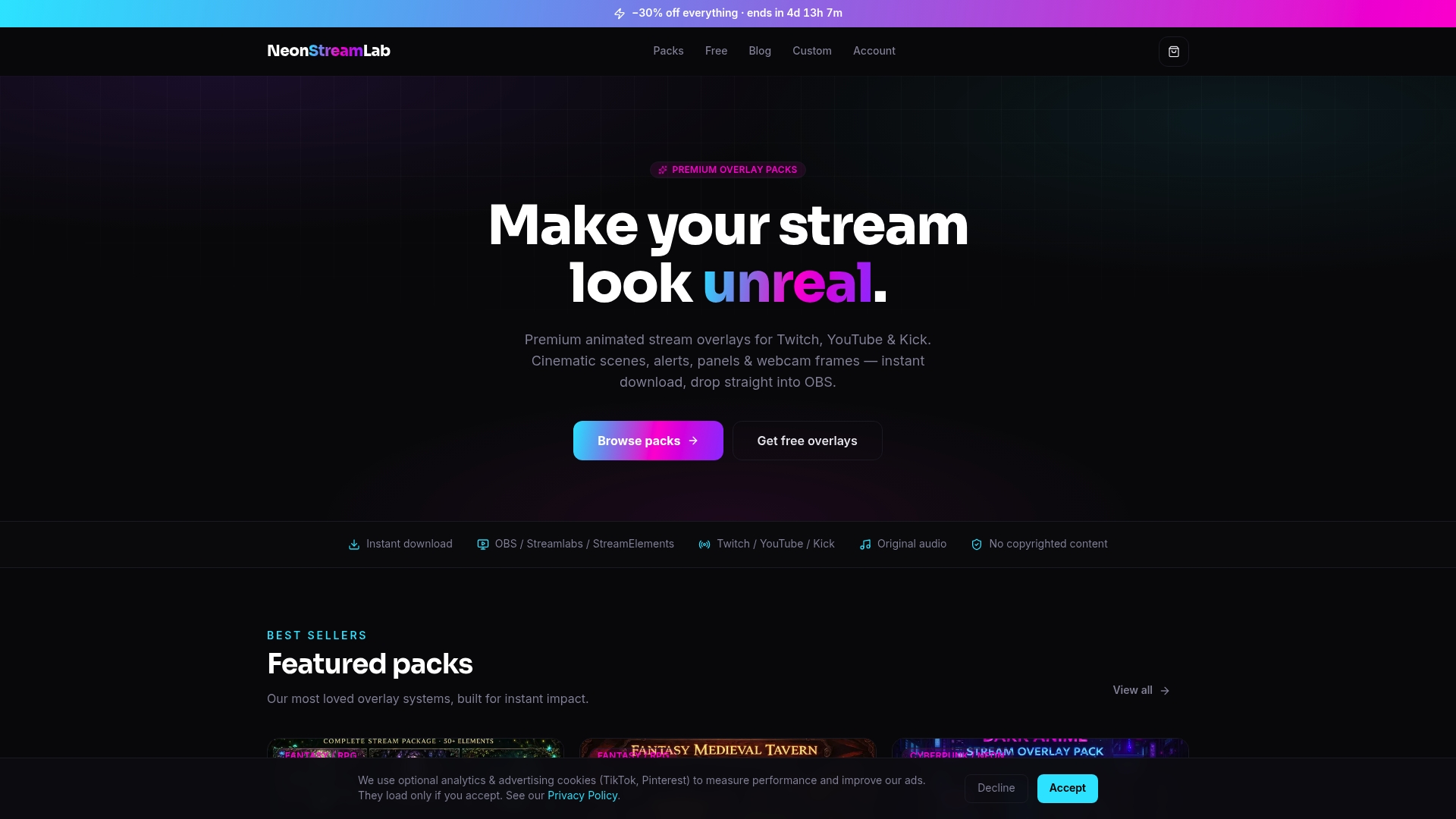
Whether you want a cinematic fantasy look, a neon cyberpunk vibe, or something completely different, Neonstreamlab has themed packs that give your alerts a visual home. You can browse the full overlay pack collection or grab a free screen maker to test the workflow before committing. Over 192 streamers have rated Neonstreamlab at 4.9/5, and the setup takes minutes, not hours.
FAQ
What audio formats work for stream alert sounds?
MP3, WAV, and OGG are the standard supported formats across major alert platforms. MP3 is the most practical choice for most streamers due to its small file size and wide compatibility.
How long should a custom alert sound be?
Alert sounds should be 3-5 seconds long. Longer clips interrupt your stream conversation and can frustrate viewers, especially when multiple alerts fire in a short period.
What is an alert cooldown and why does it matter?
An alert cooldown is a delay between alerts of the same type. A 30-second cooldown prevents rapid-fire notifications from stacking up during raids or donation spikes, keeping your stream audio clean.
Can I use the same sound for every alert type?
You can, but it is not the best approach. Using different sounds for follows, subscriptions, and donations creates an audio hierarchy that signals to viewers which interactions carry more weight.
Do Neonstreamlab packs include alert sounds?
Neonstreamlab packs include original copyright-free audio and work with OBS, Streamlabs, and StreamElements. Check the individual pack pages at neonstreamlab.com/packs for details on what each pack contains.
Recommended
Get matching overlays from NeonStreamLab
At NeonStreamLab we design premium animated overlay packs that already put these principles into practice - balanced colour, clean hierarchy and a cohesive look across screens, alerts, webcam frames and panels. Browse Cyberpunk overlays, Neon overlays, Cozy overlays to find a theme that fits your channel, like our Cyberpunk pack.
Every pack works with OBS, Streamlabs and StreamElements, uses original copyright-free audio, and downloads instantly. Want to try before you buy? Try our free screen makers and see how a matching look feels on your stream.