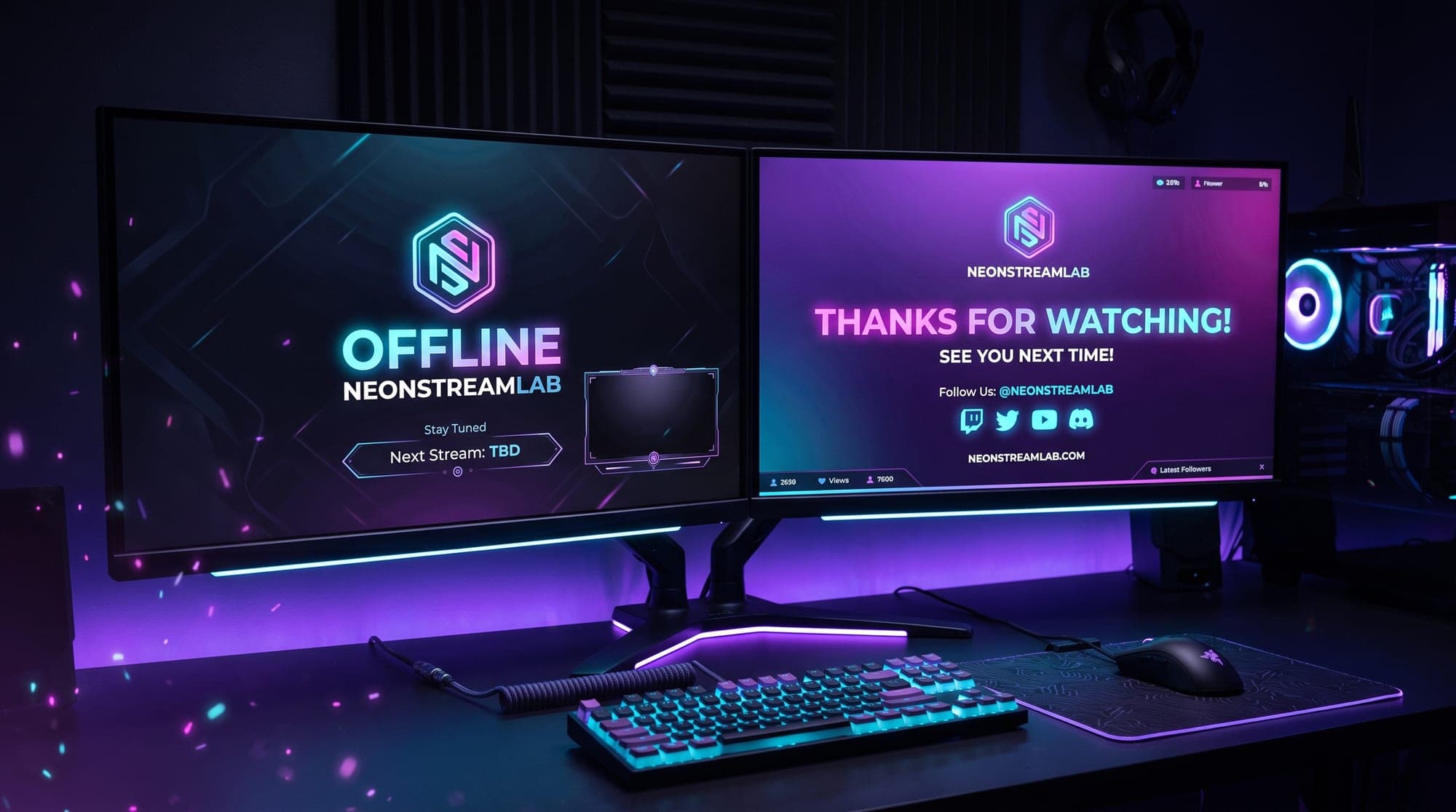
Most streamers spend their effort on what viewers see while they are live, and almost none on what people see the rest of the time. That is backwards. Your channel page is visited around the clock, and the last thirty seconds of a stream is when a casual viewer decides whether to follow.
Two screens cover that gap, and they are often confused with each other:
- The offline banner sits on your Twitch channel page whenever you are not streaming.
- The stream ending screen is the scene you switch to in the final minute before you go offline.
They serve different jobs and they are different sizes. Here is how to do both.
The Twitch offline banner
This is the image that fills your channel page when you are not live. Someone who clicks your link from a clip, a Discord or a Google result lands here, and for a lot of people it is the only thing they will ever see of your channel.
Size: 1920 x 1080 pixels. Twitch crops it responsively, so keep anything important away from the edges. It is a static image only, no video.
What actually belongs on it:
- Your channel name, large and readable
- Your schedule, if you have one. "Tue / Thu / Sat, 8pm CET" is worth more than any graphic
- What you stream, in three words or fewer
- Your other platforms, if you want them followed
The single biggest mistake is treating this as decoration. A pretty image with no information tells a first-time visitor nothing about when to come back.
To upload it: go to your Twitch Creator Dashboard, then Settings, then Channel, then Brand, and use the Video Player Banner field.
While you are there, your channel panels sit directly below and are worth the same ten minutes.
The stream ending screen
This is a scene in OBS or Streamlabs, not a Twitch setting. You switch to it for the last thirty to sixty seconds of a stream while you thank people and say goodbye.
It matters more than its length suggests. Twitch raids happen at the end. Follows happen at the end. Someone who enjoyed two hours decides at the end whether to come back.
Size: 1920 x 1080 pixels, and unlike the offline banner it can be animated. Use WEBM if you want a loop, or PNG if you want it still.
What to put on it:
- "Thanks for watching", in your own words
- When you are next live
- Your Discord and socials
- Room for a raid message if you raid someone
You can build one for free in your browser with our stream ending screen maker, and the offline screen maker covers the banner side.
Adding the ending screen in OBS
Build it as its own scene, exactly like a BRB screen. Do not toggle an image on top of your gaming scene, because that leaves your game audio and camera running.
- In Scenes, click + and name it "Ending".
- In Sources, click + and pick Image for a PNG or Media Source for a WEBM.
- Select your file. For a Media Source, tick Loop.
- Right click the source, choose Transform, then Fit to screen.
- Add your microphone so you can still talk. Keep the camera if you want a proper goodbye, drop it if you do not.
Streamlabs is the same with different wording, and the full walkthrough is in our Streamlabs overlays guide. StreamElements users can follow this one instead.
The mistakes that cost you followers
Using a photo with no text. A beautiful screenshot tells a visitor nothing. If your banner does not say when you stream, it is decoration, not marketing.
Wrong dimensions. Anything other than 1920 x 1080 gets cropped or stretched by Twitch, and the crop is responsive, so what looks fine on your monitor can cut your channel name in half on a phone.
Putting text at the very edges. Twitch crops the banner differently depending on window width. Keep everything that matters inside the middle two thirds.
An ending screen that never gets used. The most common failure is simply forgetting to switch to it. Some streamers bind it to a hotkey in OBS under Settings, then Hotkeys, so it is one keypress rather than a hunt through scenes.
A schedule you do not keep. An offline banner promising "live every day" from a channel that streams twice a month does more damage than no schedule at all. Put down what is true.
Leaving the game audio running on the ending scene. Same trap as the BRB screen. Build it as a separate scene with only the sources you actually want.
Offline banner or ending screen: which one first
If you only have time for one, make the offline banner. It works for you every hour of every day, including while you sleep, and it is the page every new visitor lands on. The ending screen only works during the last minute of a stream you are actually running.
That said, both take about ten minutes each with a template, so the honest answer is to do both this week.
Make them match
An offline banner in one style, an ending screen in another and a starting soon screen in a third makes a channel look assembled from whatever was free that week. Viewers notice, even when they could not tell you why.
The fix is to take all your screens from one set. Every animated overlay pack includes the full run - starting soon, BRB, offline and ending screens, plus alerts, panels and webcam frames in the same style. The enchanted forest pack and the sakura pack show how different that can look while staying consistent.
Once these two are done, the remaining screens are the starting soon screen and the BRB screen. With all four in place you never have to show a viewer a frozen game again.