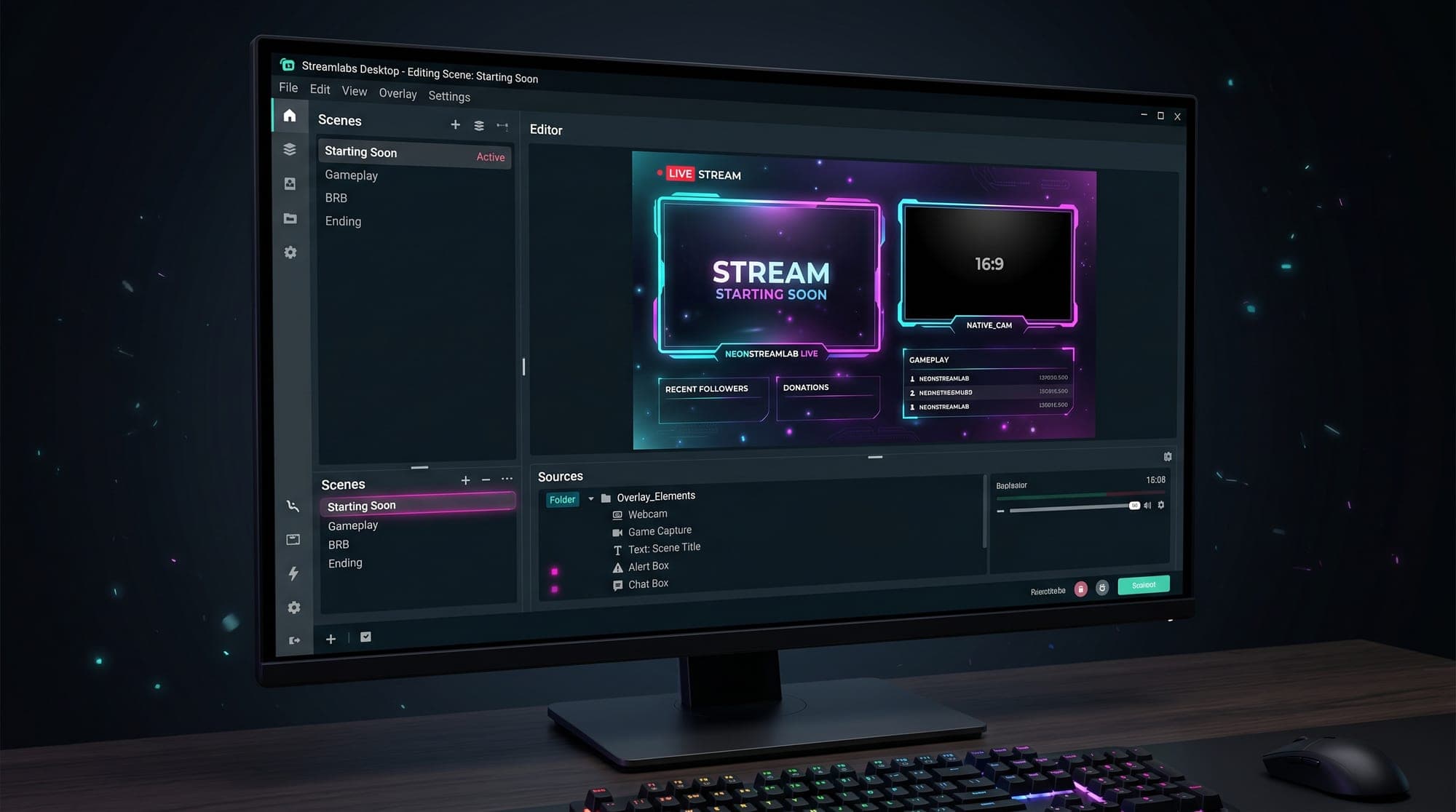
If you stream with Streamlabs Desktop, adding an overlay is refreshingly simple once you choose the right workflow. A .overlay file can import a complete Streamlabs scene collection at once — but only when the creator actually supplies that format. Normal PNG, MP4 and WEBM assets are added manually as sources, and that is just as valid.
This guide shows both paths: how to import a genuine .overlay file, how to build scenes from your own graphics, what Widget Themes are, and how to keep every layer working in Streamlabs Desktop.
Quick answer: add an overlay to Streamlabs Desktop
There are two legitimate ways to add an overlay in Streamlabs Desktop:
- You have a .overlay file: open Settings → Scene Collections → Import Overlay File, choose the file and let Streamlabs create the scene collection.
- You have PNG, MP4 or WEBM assets: create the scenes you need, then use Sources → + to add each image, media source, camera and widget in the correct layer order.
Do not assume every overlay download includes a .overlay file. Check the files supplied by its creator first. The manual method works with normal overlay assets and gives you complete control over the setup. Streamlabs confirms both workflows in its current official overlay guide.
What are Streamlabs overlays and themes?
A Streamlabs overlay is the visual layer of your stream - your starting-soon screen, webcam frame, alerts, chat box and panels - all designed to match. In Streamlabs you'll see two related terms:
- Overlays / Themes - the full visual design (screens, alerts, the lot). These import as a ".overlay" file or install straight from the Streamlabs Theme Library.
- Widget Themes - a profile that stores all your alert and widget settings (alert box, donation goals, chat box). You can keep several and switch between them.
The big advantage of Streamlabs Desktop is that everything lives in one app. Your overlay, your alerts and your stream settings are bundled together, so you're not juggling a separate browser-source dashboard like you would elsewhere.
How to import an overlay into Streamlabs Desktop
This is the fastest way to get a full setup live. If you've got a ".overlay" file (most overlay packs include one), it imports your entire scene collection in one go.
- Open Streamlabs Desktop and click the Settings (gear) icon.
- Go to Scene Collections.
- Click Import Overlay File.
- Select the .overlay file you want to upload and click Open.
- You'll see a short loading screen while it imports - then you land in your scenes, fully set up.
That's it. All your screens, webcam frame, alerts and panels appear as ready-made scenes. From there you can tweak positions, resize anything, and you're live with a complete look in a few minutes.
Adding your own custom overlay
Don't have a .overlay file, or want to build a scene from your own graphics? You can add individual elements by hand just as easily.
Under each Scene, click the + button next to Sources, then:
- Choose Image (for a static PNG/JPG element like a webcam frame or panel) and click Add Source.
- Give it a name, click Add New Source, then Browse to find your image file.
- Repeat for each element - your starting-soon background, webcam frame, chat box, and so on - until your scene is complete.
For animated overlays, use the format supplied with the pack. A transparent WebM is useful for elements such as webcam frames; an MP4 works well for a full-screen background. Add animated files as a Media Source, enable looping when needed, and test the scene before you go live. Your computer, resolution and other active sources determine the performance cost.
Streamlabs Widget Themes (alerts & widgets)
Your Widget Theme is where your alerts and interactive widgets live - your alert box, donation goals, event list and chat box. Think of it as a saved profile for everything that reacts to your viewers.
You can install a ready-made Widget Theme from the Streamlabs library, or create your own: head to your Widget Themes page in the Streamlabs dashboard, click Create Widget Theme, and name it. From there you customise each widget's look and behaviour. Keeping your Widget Theme matched to your overlay's style is what makes your alerts feel like part of the design instead of a generic pop-up.
Advanced tip: Streamlabs also has a Custom Widget feature (in the dashboard, or via the + in your sources under the Widgets section) for creators who want to build widgets with their own HTML/CSS. It's powerful, but you only need it if you're going fully custom.