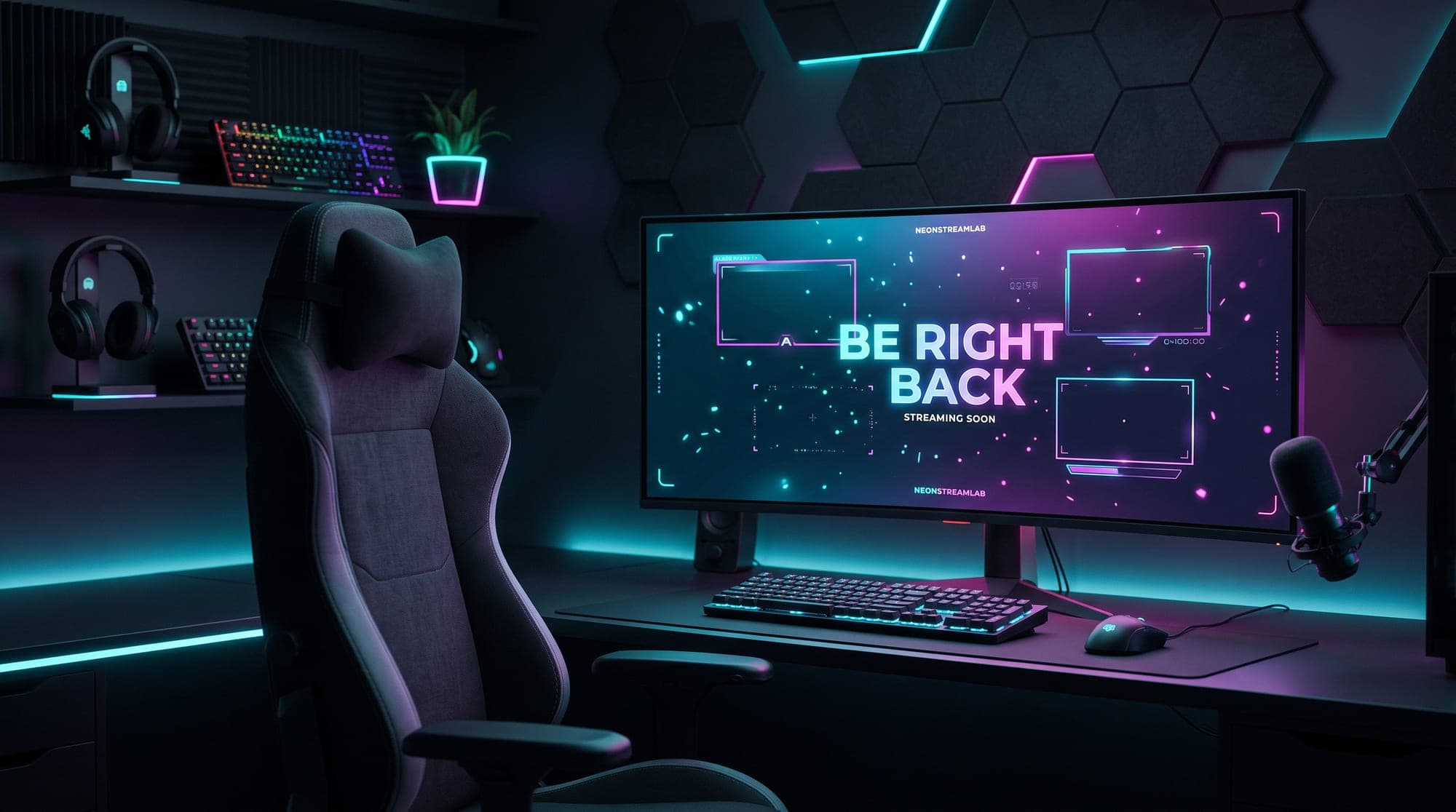
Every streamer steps away. Bathroom, doorbell, a drink, a crashed game. What separates a channel that feels professional from one that feels abandoned is what viewers see during those four minutes.
A BRB screen (short for "be right back") is the scene you switch to when you leave. Done right, it holds your audience instead of losing them. Done badly, or not at all, people see a frozen game or an empty desk and go find another stream.
This guide covers the whole thing: what to put on it, the correct size, how to make one for free, and how to set it up as a proper scene in OBS or Streamlabs.
What a BRB screen actually needs
Most BRB screens fail for the same reason: they say "be right back" and nothing else. A viewer has no idea whether that means one minute or twenty, so they leave.
Four things do the work:
- The words themselves. "Be right back", "BRB", or something in your own voice. Keep it readable at a glance.
- A rough duration. "Back in 5" holds far more people than a bare "BRB". You do not need a live countdown, just an honest estimate.
- Something to look at. Movement, a loop, an animated background. A completely static image reads as a technical fault.
- A reason to wait. What you are playing next, your socials, or your Discord. Give people something to do for four minutes.
The right size for a BRB screen
Make it 1920 x 1080 pixels. That is the resolution almost every stream outputs at, and anything smaller gets scaled up and looks soft.
Two formats matter:
- PNG for a still screen. Simple, universally supported, tiny file.
- WEBM with alpha for an animated one. This is the format OBS and Streamlabs use for looping video with transparency, and it is what makes a screen feel alive rather than frozen.
If you find a file in MOV or MP4, it will still play, but MP4 cannot carry transparency. For a full-screen BRB that does not matter, since nothing shows behind it.
Make a BRB screen for free, right now
The fastest route is a browser tool that outputs the finished file. Our free BRB screen maker gives you finished 1080p designs with no watermark and no account, and you can type your own text and swap the background if you want something specific.
If you would rather build it yourself, Canva and Photopea both work. Start a 1920 x 1080 canvas, add a background, add your text large enough to read on a phone, and export as PNG. It takes about ten minutes and the result is fine.
The trap to avoid is grabbing a random image from a search engine. Most of what you find is either watermarked, the wrong size, or copyrighted, and Twitch does act on DMCA claims.
How to add your BRB screen in OBS
The mistake most people make is dropping the image on top of their gaming scene and toggling its visibility. That leaves your game audio running and your webcam live. Use a separate scene instead.
- In the Scenes panel, click + and name it "BRB".
- With that scene selected, click + in Sources and choose Image for a PNG, or Media Source for a WEBM.
- Point it at your file. For a Media Source, tick Loop so it repeats.
- Right click the source, choose Transform, then Fit to screen.
- Add your microphone to this scene only if you want to keep talking. Leave the game audio and camera out of it.
Now switching to BRB is one click, and everything private stays private. That last part matters more than it sounds: leaving your desktop or camera live while you walk away is how streamers end up in compilation videos.
To make the switch feel deliberate, add a Stinger transition between your main scene and BRB. It is under Scene Transitions, and it turns a hard cut into something that looks intentional.
If you are new to scenes in general, our guide on adding a Twitch overlay to OBS walks through the whole setup.
Doing the same thing in Streamlabs
Streamlabs works the same way with different labels. Create a new scene, add an Image or Media source, point it at your file, then right click and choose Fit to Screen.
If you use Streamlabs widget themes, adding your own file on top is still fine. The steps are in our Streamlabs overlays guide. StreamElements users can follow the same process here.
Common BRB screen mistakes
Leaving your camera on. The most common and the most costly. Build BRB as its own scene and simply do not add the camera to it.
Music you do not own. A BRB screen is the moment people reach for a playlist. Twitch mutes VODs and issues strikes for unlicensed music. Use a DMCA-safe library or nothing.
Text too small. A large share of your viewers are on a phone. If you cannot read it on your own phone at arm's length, it is too small.
No timeframe. "BRB" alone gives a viewer no reason to stay. Even a rough "back in 5" changes the maths for them.
Forgetting to switch back. It happens constantly. Some streamers set a phone timer for the estimate they promised.
Make your BRB match the rest of your stream
A BRB screen looks best when it is not a one-off. When your starting soon screen, your BRB, your offline screen and your webcam frame all share the same colours and motion, the channel reads as a brand rather than a collection of downloads.
That is the point of a matching pack. Every animated overlay pack includes the full set - starting soon, BRB, offline and ending screens, alerts, panels and webcam frames, all built in the same style. If you want a feel for the range, the cozy lofi cafe pack and the neon city cyberpunk pack sit at opposite ends of it.
And once your BRB is done, the next screen to build is the one people see before you go live: our guide to making a starting soon screen covers that one.