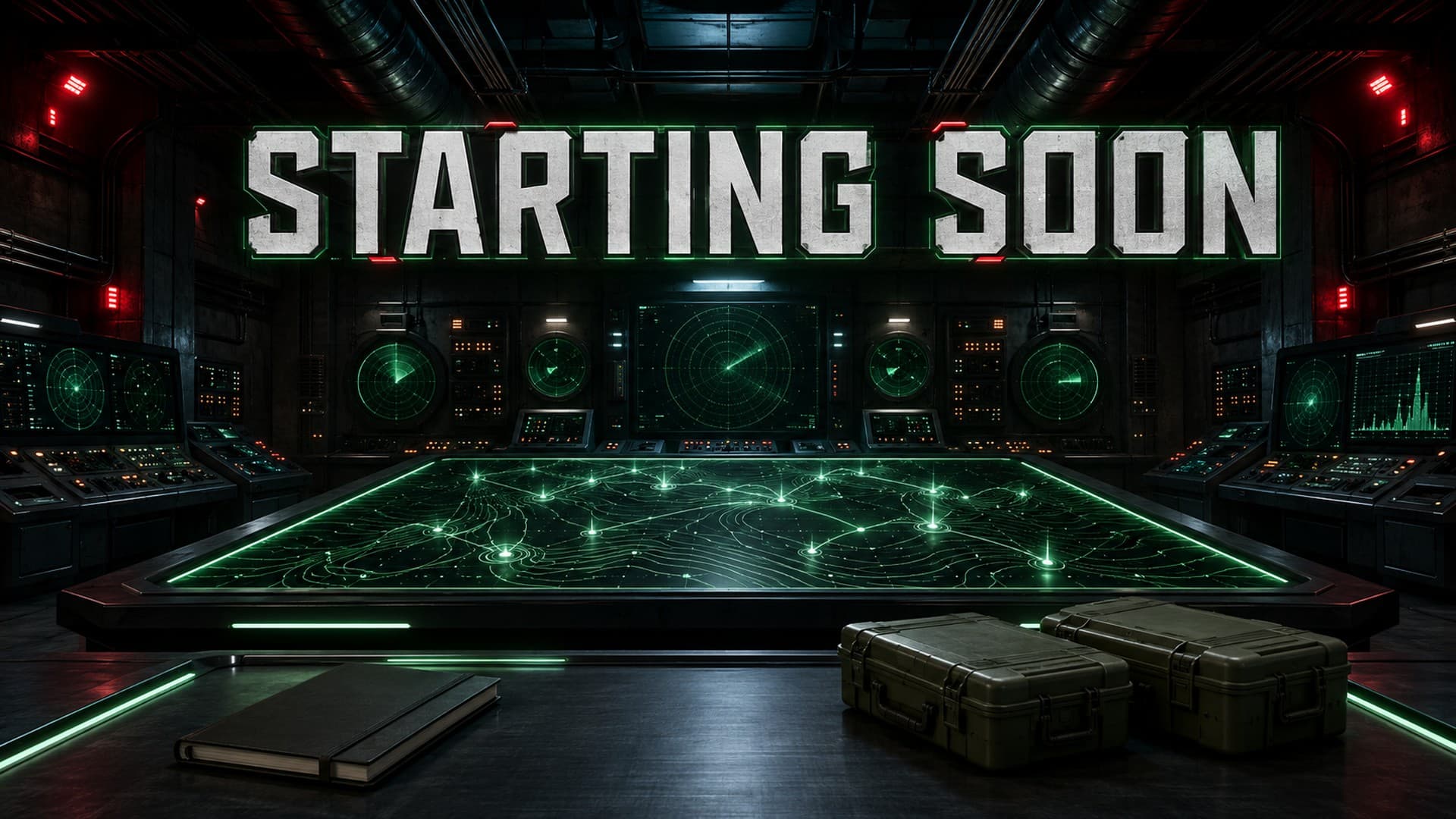
Choose a military Twitch overlay by the atmosphere you want around your content: a modern tactical operation, an underground command bunker, or a vintage war room. Then check the actual screens, alert files and webcam layout. A military-looking thumbnail alone does not tell you whether the pack fits your broadcast.
This guide compares three NeonStreamLab designs using their actual product previews. These are our own packs, not an independent ranking of other shops. You can see the full range in the military and war overlay collection.
Quick choice: tactical, bunker or vintage?
| Your channel's visual direction |
Start with |
What distinguishes it |
| Modern FPS, tactical action or extraction streams |
Tactical Shooter |
Urban operations, smoke, camo details and amber lighting |
| Command-center, milsim or strategy atmosphere |
Command Bunker |
Radar displays, steel consoles and green interfaces with red accents |
| Historical strategy or a vintage military identity |
WW1 War Room |
Antique maps, lantern light, wooden desks and sepia tones |
The difference is primarily the art direction, not the streaming platform. Choose a style you would still want on your Starting Soon and Just Chatting scenes when you switch games.
1. Tactical Shooter: modern operations and amber light
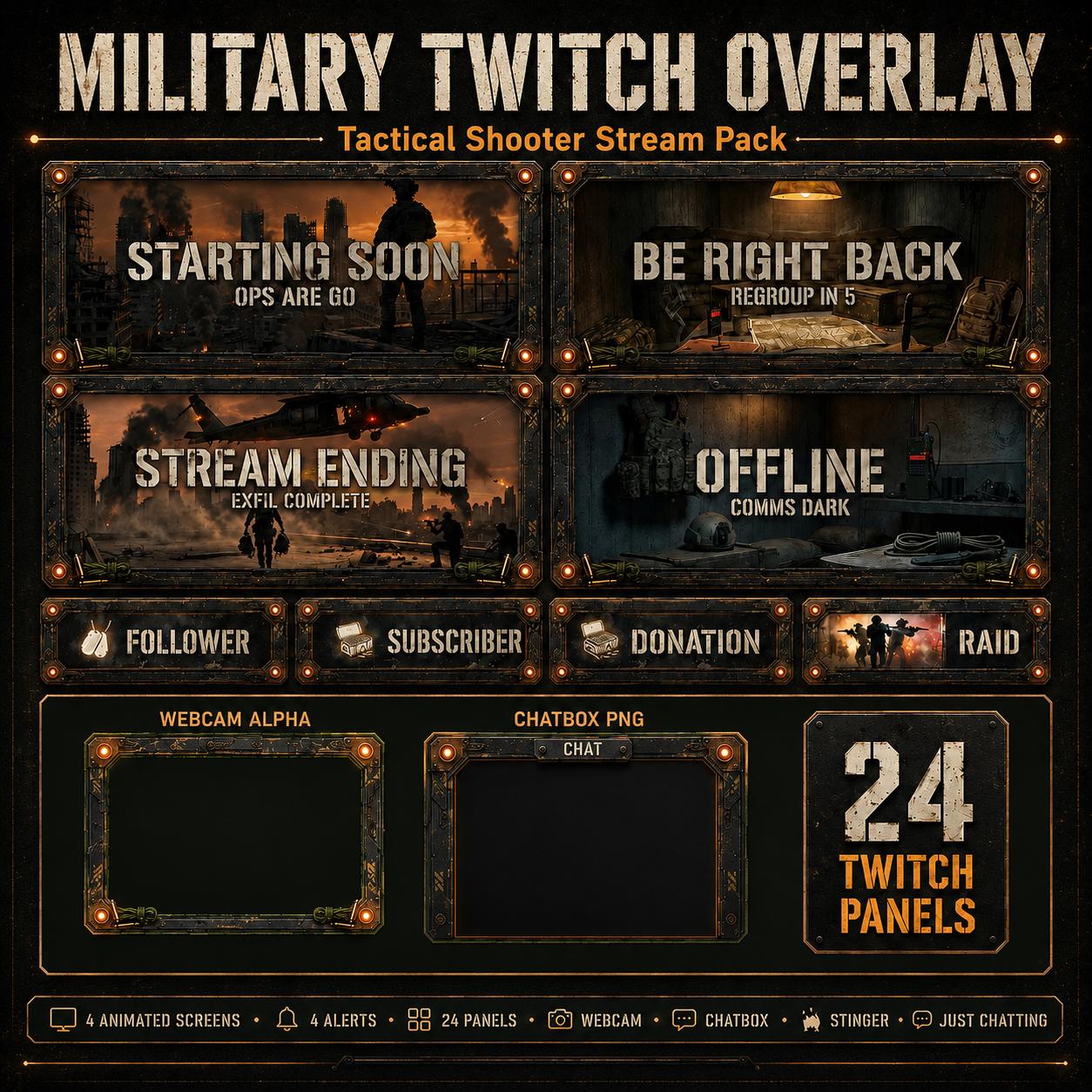
The Tactical Shooter pack uses urban rooftop operations, helicopters, smoke, bunker communications rooms and tactical equipment. Its warm amber highlights give it a different feel from a green radar interface.
This is the direction to consider if your channel revolves around modern tactical action and you want your breaks and alerts to carry that atmosphere. Before choosing it, compare the webcam frame with your usual gameplay: an attractive border is not useful if you place it over the ammunition counter or minimap.
Check before buying: the full-screen scenes are deliberately cinematic. Use them for intros, breaks and endings; keep the gameplay scene simpler so viewers can follow the action.
2. Command Bunker: an underground control-room identity
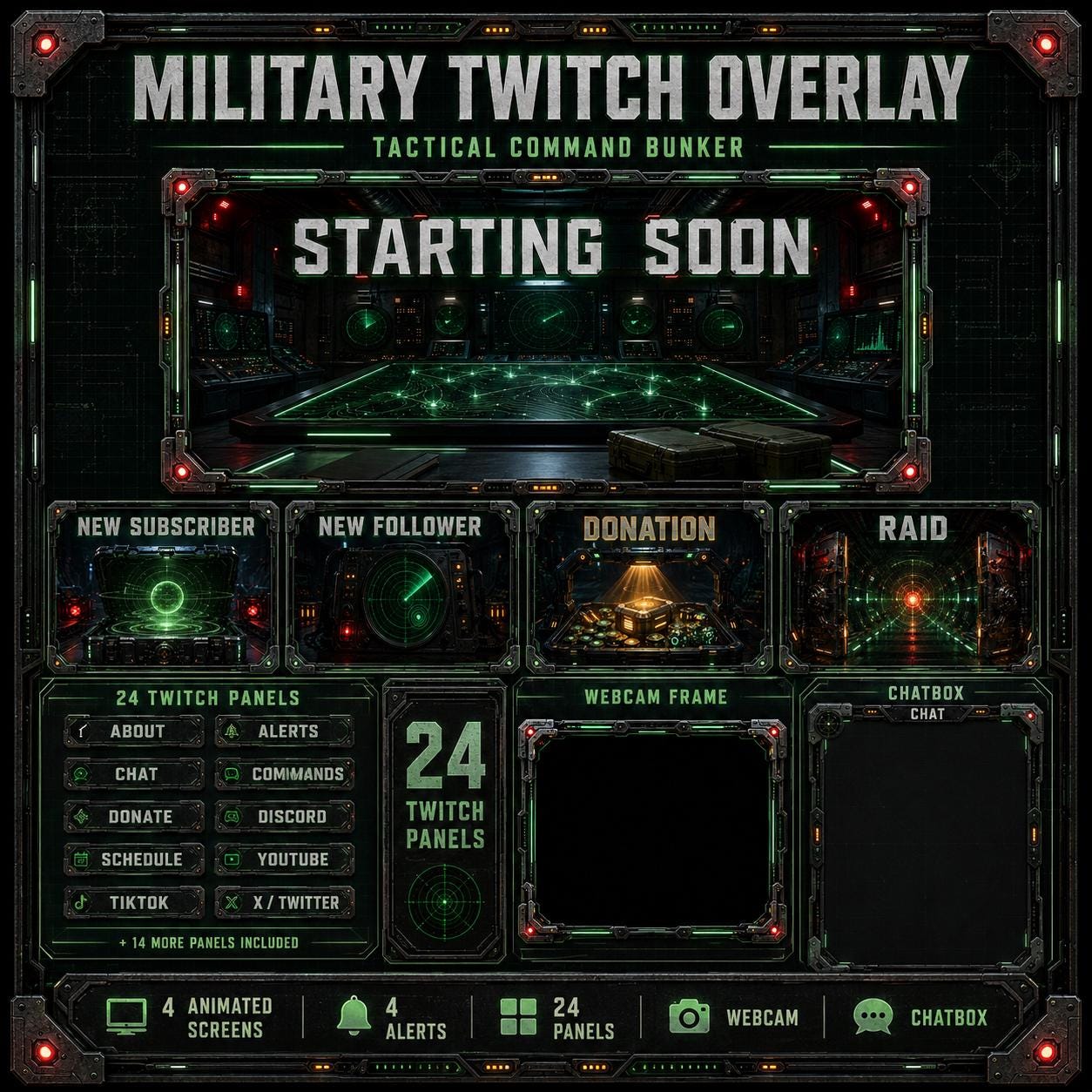
The Command Bunker pack centers on radar displays, reinforced steel consoles, green interfaces and red alert lighting. It feels like a place your audience is visiting: a command room rather than an outdoor battlefield.
Consider this direction for military simulation, strategy discussions or a channel that wants a consistent command-center identity across different games. The same visual language carries through the screens, alerts, webcam and panels.
Check before buying: green and red interface details need to remain distinct from your game's own UI. Preview the layout over both a bright outdoor scene and a dark interior, rather than judging it only against the product's background.
3. WW1 War Room: maps, lanterns and vintage atmosphere
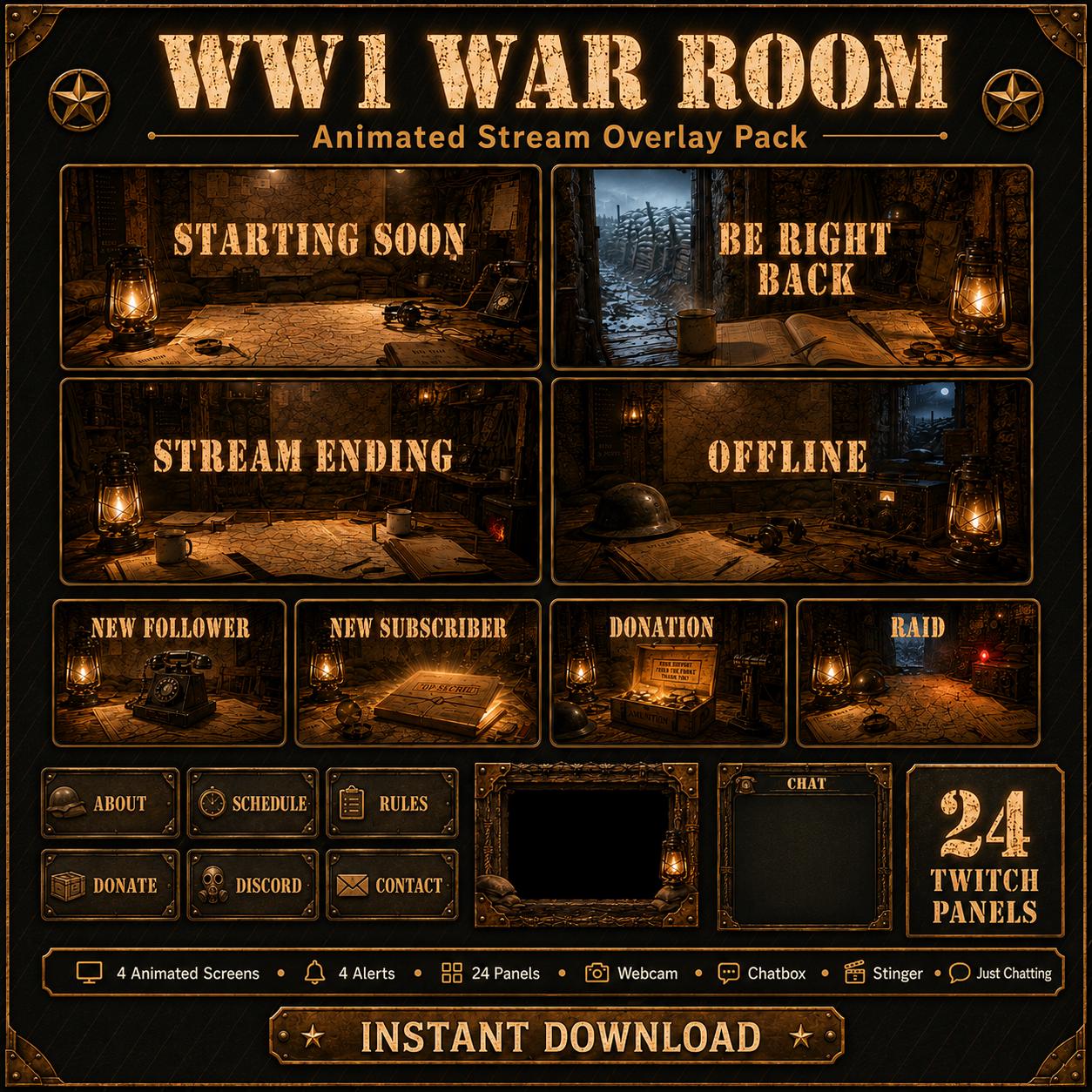
The WW1 War Room pack uses antique maps, wartime documents, wooden desks and warm lantern light. Its sepia palette offers a quieter historical direction than the modern tactical designs.
Choose it when you want a vintage military atmosphere for history, strategy or campaign-focused content. The WW1 name describes the design theme; it does not make this an official game skin or a historically certified reconstruction.
Check before buying: look at small text against the warm, textured background. Your username labels and chat should stay readable when the stream is viewed on a phone.
What these military overlay packs include
The three product listings include a coordinated set of assets:
- Four animated screens: Starting Soon, Be Right Back, Stream Ending and Offline.
- Four animated alert graphics: Follower, Subscriber, Donation and Raid.
- A transparent animated webcam frame and a matching Just Chatting layout.
- A chatbox graphic and 24 Twitch panels.
- A stinger transition, Twitch and YouTube banners, and a PDF installation guide.
File types matter. Screens and alerts are MP4 videos. Transparent animated webcam and Just Chatting assets use WEBM alpha. Panels and chatbox graphics use PNG. Still images are also supplied for several animated assets; check the chosen product's file list for the exact static versions. A JPG still and a transparent PNG are not interchangeable.
An alert video is the visual asset, not a complete event service. Configure dynamic usernames, amounts and messages in your alert platform. Likewise, the chatbox graphic frames your chat; a live chat widget supplies the actual messages.
A practical layout check before going live
Keep decoration away from the information viewers need: minimaps, health bars, subtitles and tactical readouts. There is no universal safe corner because every game's interface is different.
Use a separate scene for each full-screen break screen. On the gameplay scene, start with your game capture and camera, then add only the frame, chat and alerts you need. If a section is not useful to viewers, you do not have to display it just because it came in the pack.
Make a short local recording and review it at phone size. Check that the camera opening fits, alert text stays readable, and scene audio does not compete with your microphone. Compare bright and dark gameplay footage. This is a more reliable test than a clean product thumbnail.
For color and contrast choices, see our stream overlay color palette guide.
How to use the files in OBS
- Extract the downloaded ZIP before adding files to OBS.
- Add an MP4 screen as a Media Source and enable Loop for a repeating break screen.
- Add the transparent WEBM webcam frame as another Media Source, above your camera in the source list.
- Add PNG graphics as Image Sources. Configure event alerts in your alert platform and bring that service into OBS as a Browser Source.
OBS documents MP4 and WEBM support and the Loop option in its official Media Sources reference. StreamElements explains how its overlay URL connects to an OBS Browser Source. Do not loop an alert or a stinger as though it were a break screen.
For illustrated steps, use our OBS overlay installation guide, webcam frame guide and Twitch alert setup guide.
Questions to settle before choosing a pack
Can I use a military overlay on YouTube or Kick?
The media files are placed in your streaming software, so the visual layout is not restricted to Twitch. Live alerts and chat depend on the platform and service you connect. Twitch panel images are channel-page assets and do not automatically become panels on another platform.
Is this an editable custom design?
These are pre-rendered graphics packs. You can position the assets and add your own text in your streaming setup, but buying a pack does not mean its artwork becomes an editable source project. Check the listing or contact us before buying if you need changes to the artwork itself.
Are these official game overlays?
No. These are NeonStreamLab military-themed designs, not official artwork or endorsements from a game studio. Pick them for their visual direction rather than expecting franchise logos or a game-specific interface.
Choose the atmosphere, then check the files
Start with Tactical Shooter for modern operations and amber lighting, Command Bunker for green control-room interfaces, or WW1 War Room for a warm historical setting. Open the individual product previews, compare the actual assets, and choose the look that fits your channel beyond a single game.
Compare the military and war collection, or try a free starter pack first if you want to learn the installation workflow before choosing a premium theme. The free packs are different themes, not free versions of these military collections.