Adding an overlay to OBS is one of those things that sounds technical until you actually do it - then you realize it takes about five minutes. If you've just downloaded an overlay pack (or you're about to) and you're staring at OBS wondering where everything goes, this guide walks you through the whole thing, step by step, no jargon.
By the end, your Starting Soon screen, alerts, webcam frame and panels will all be live on your stream, looking like a channel that's been around for years.
Let's get into it.
What you'll need before you start
You don't need much, but a couple of things make this painless:
- OBS Studio (free) installed and updated. Streamlabs and StreamElements work too - the steps are nearly identical.
- An overlay pack unzipped into a folder you'll remember. Most packs come as PNG images, looping MP4 or WebM animations, and sometimes alert files. If you don't have one yet, grab a free screen maker to follow along - it's a great way to test your setup before buying.
- Five minutes. Seriously, that's it.
A quick tip before you start: create one folder called something like MyStreamOverlay and drop every file from your pack inside it. Keeping everything in one place will save you a lot of clicking later.
Step 1 - Set up your Scenes
Think of Scenes as the different "views" of your stream. Most streamers use at least four:
- Starting Soon - what viewers see before you go live
- Live / Gameplay - your main scene while streaming
- Be Right Back - for quick breaks
- Stream Ending - your outro
In OBS, look at the Scenes box (bottom-left). Click the + button and create a scene for each one. Name them clearly - future-you will thank you.
If your overlay pack is built as a complete set (like most of ours), you'll have a matching animated screen for each of these. That's the whole point of a themed pack: everything already matches, so you're not stitching together random elements.
Step 2 - Add your animated screens
Now let's bring in the visuals. Click on your Starting Soon scene, then in the Sources box click +.
- For an animated screen (MP4 or WebM), choose Media Source.
- For a static image (PNG), choose Image.
Browse to your overlay folder, pick the right file, and hit OK. It'll drop onto your canvas.
For looping animations, turn on Loop in the Media Source settings; otherwise your Starting Soon, BRB or Offline screen will play once and freeze. For a screen that should begin from the first frame whenever you switch back to that scene, also keep Restart playback when source becomes active turned on. That is the setup used in the Ocean example below.
Here is the real Ocean pack preview. It shows the actual Starting Soon screen, alerts, panels, webcam frame and chatbox supplied in the collection:
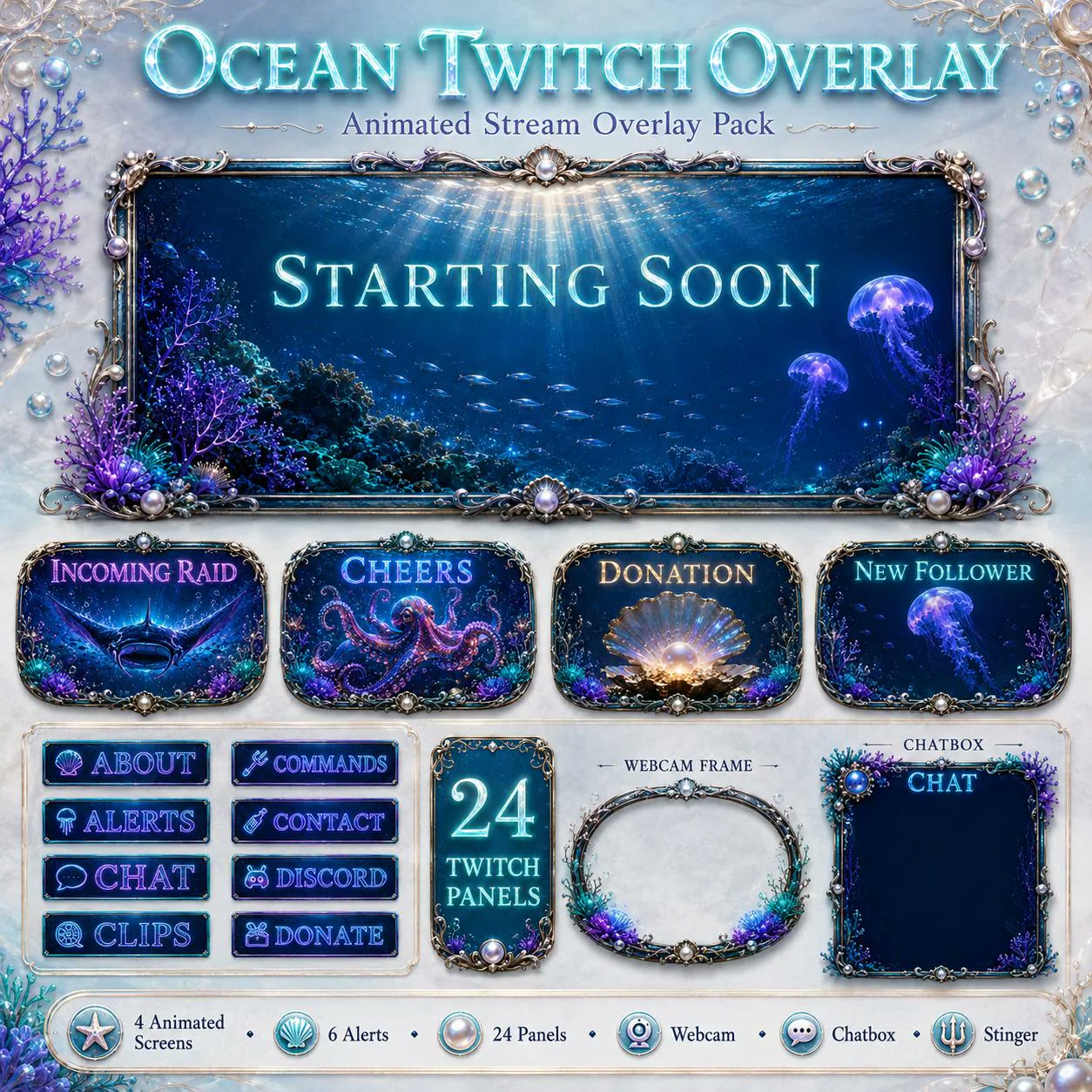
Real Ocean product preview from the pack. This shows the files and style supplied; it is not an OBS interface screenshot.
These are real OBS views of the same Ocean scene collection. The animated source is visible, the optional static source is hidden by default, and the Ocean Stinger is selected in Scene Transitions.
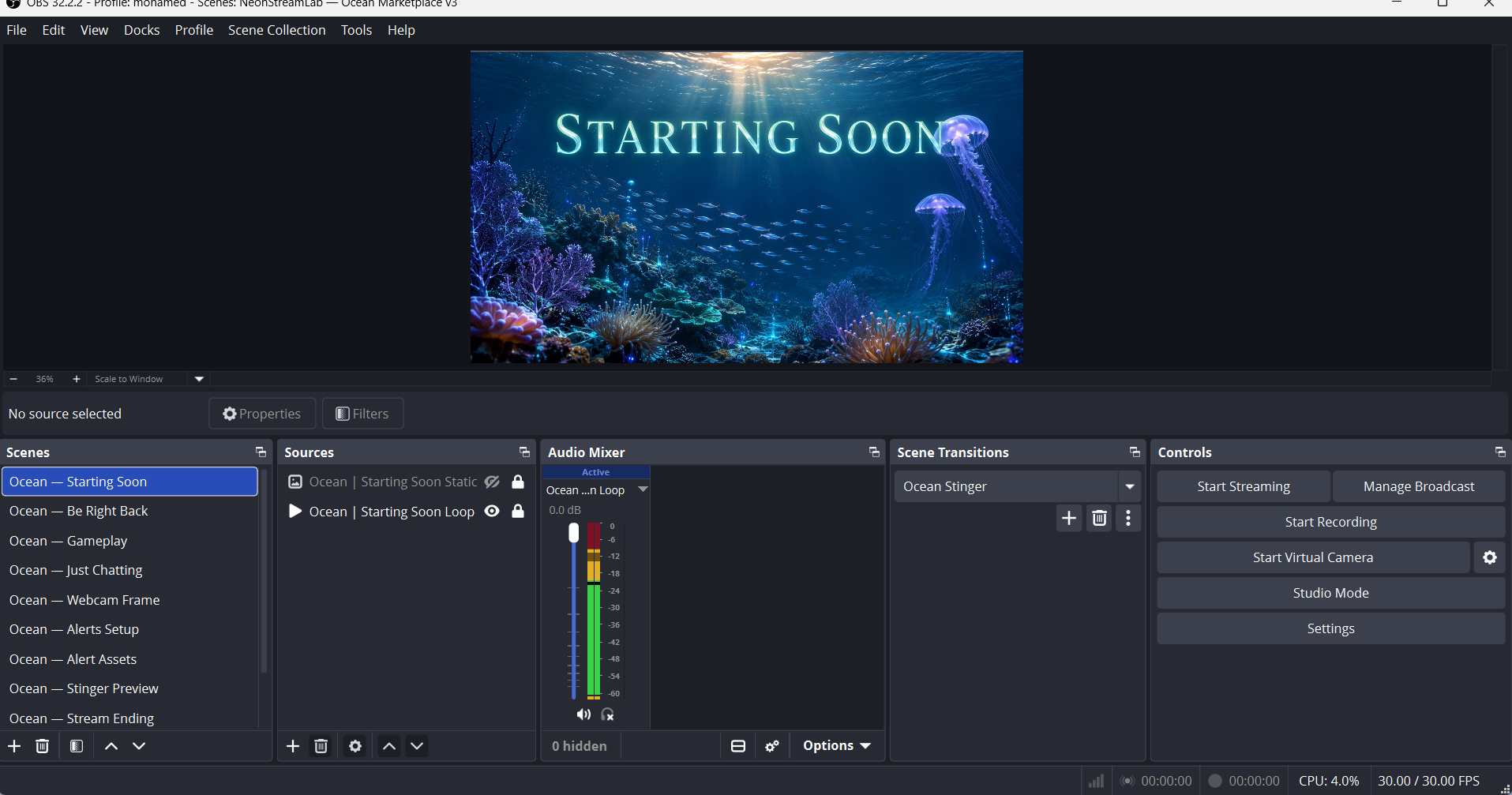
Real OBS Starting Soon scene: the animated loop is active and the optional static fallback is hidden.
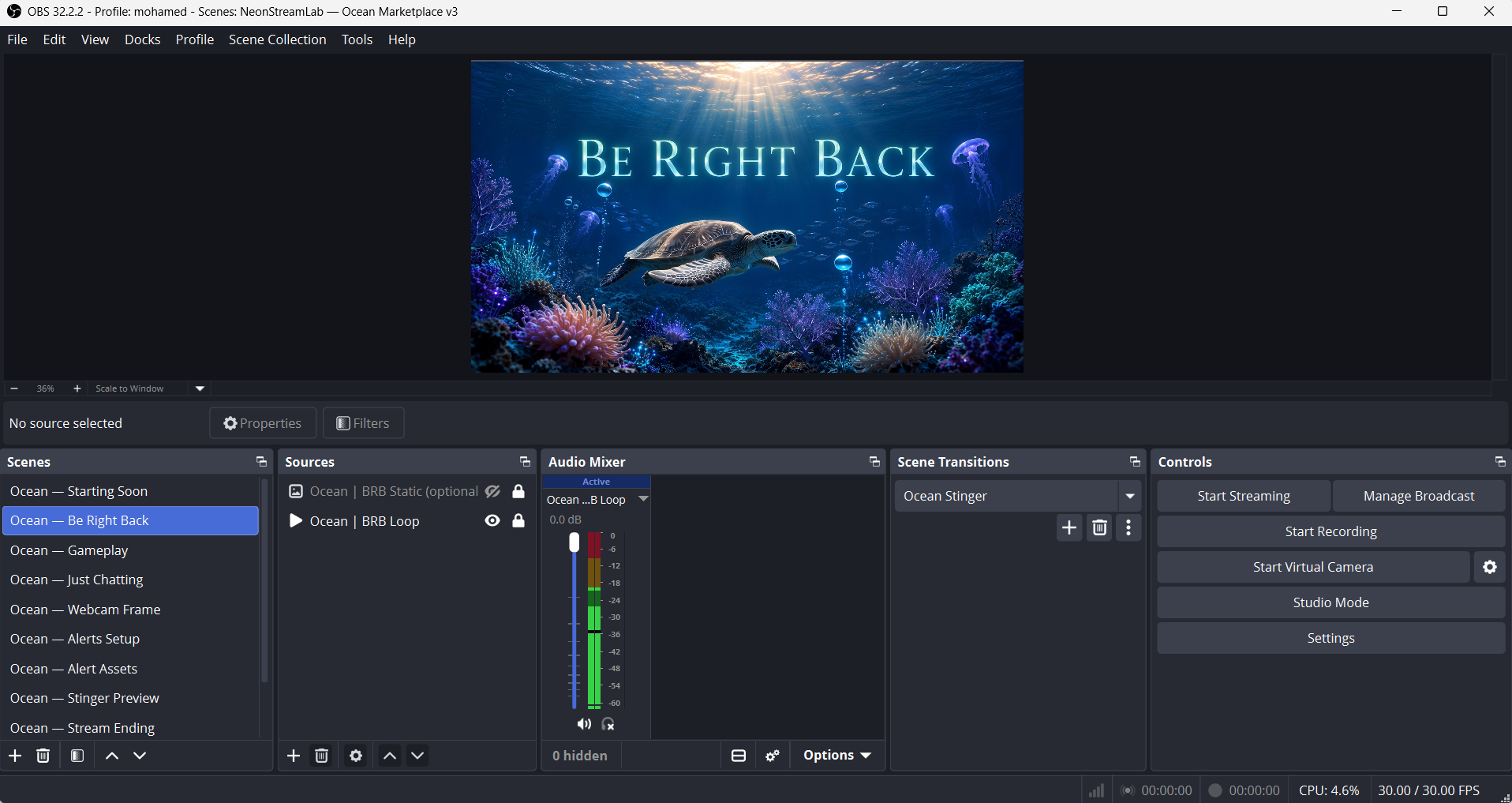
Real OBS Be Right Back scene: the matching animated loop and Ocean Stinger are ready to use.
Repeat this for each scene: the Be Right Back screen in your BRB scene, the Ending screen in your outro scene, and so on. If you don't have those yet, see how to make a BRB screen and how to put an offline overlay on Twitch.
Step 3 - Resize and position everything
Your screen probably won't fill the canvas perfectly at first. No problem.
Click the source, and you'll see red handles around it. Drag the corners to resize. To make it fill the screen perfectly, right-click the source → Transform → Fit to screen (or press Ctrl+F). Done - pixel-perfect, every time.
A standard stream canvas is 1920×1080. Good overlay packs are designed at exactly this resolution, so they snap into place cleanly without stretching or blurring. If your overlay looks soft or pixelated, double-check that you're working at 1080p in Settings → Video.
Optional Step 3b - Add a stinger transition
A stinger is the short animation that plays while OBS changes scenes. In the Scene Transitions panel, choose a Stinger transition, select the MP4 file from your pack, then set the transition point to the moment where the frame is fully covered. In the Ocean collection, the transition point is 1500 ms and Preload Video to RAM is enabled for a smoother switch.
Use Preview Transition before going live. If the cut happens too early or too late, adjust the transition point rather than changing the scene timing.
Step 4 - Add your webcam frame
Your webcam frame goes on your Live scene, layered on top of your camera feed.
- In your Live scene, add your Video Capture Device (your webcam).
- Position and resize it where you want your face.
- Add the webcam frame from your pack as an Image or Media Source, on top of the camera in the Sources list.
- Line them up so your face sits neatly inside the frame.
The order matters here: in the Sources list, anything higher up appears in front. So your frame should sit above your webcam, and your webcam above your gameplay capture.
Step 5 - Add your panels
Panels are the little info boxes under your stream - About, Donate, Schedule, socials, and so on. These don't go in OBS at all. Instead:
- Go to your Twitch (or YouTube/Kick) channel page.
- Turn on Edit Panels.
- Add a panel, upload the matching panel image from your pack, and link it where you want (your Discord, donation page, etc.).
Because your panels come from the same themed pack, they'll match your overlay perfectly - that cohesive, professional look that makes a channel feel intentional.
Step 6 - Set up your alerts
Alerts (new follower, sub, donation) usually run through Streamlabs or StreamElements, not OBS directly. Our full guide on how to set up Twitch stream alerts goes deeper; here's the short version:
- Log into Streamlabs or StreamElements and go to your Alert Box.
- Upload the custom alert images or animations from your pack.
- Copy your Alert Box browser source URL.
- Back in OBS, add a Browser Source to your Live scene and paste that URL.
Now your custom alert fires on screen whenever someone follows or subscribes - with your pack's design and, if it's included, its original sound effect.
Quick answers
How to add overlays to OBS
Add each file as its own source in the scene: Sources panel, +, then
Image for a PNG and Media Source for an MP4 or WebM. Sources higher in
the list are drawn on top, so your overlay has to sit above your game capture
and your webcam. That is the whole trick, and it is covered step by step above.
How to add a PNG overlay in OBS Studio
Use Image, not Media Source. A PNG keeps its transparency, so the areas the
designer left empty stay see-through and your gameplay shows behind. If your PNG
comes out with a white or black box around it, the file was flattened when it
was exported and it needs re-exporting with an alpha channel.
How to add a URL or browser overlay to OBS
Alerts, chat boxes, goal bars and most widgets are not files, they are web
pages. Add them with +, then Browser, and paste the widget URL your
alert service gave you. Set the width and height to the size you want on screen
rather than resizing the box afterwards, which blurs the result.
How to add Twitch chat as an overlay in OBS
Same method: a Browser source pointing at a chat widget URL from your alert
service. We wrote a dedicated guide on
how to add a chat overlay in OBS that covers
readability, background transparency and the settings people usually miss.
How to add an overlay on Twitch itself
You do not, and this trips up a lot of people. Twitch receives a finished video
from OBS, so anything you see over the gameplay is composed on your computer
before it leaves. The only things you upload directly to Twitch are your
panels and your offline banner.
A few common mistakes (and quick fixes)
- My animation isn't looping. Open the Media Source and tick Loop.
- The overlay looks blurry. You're probably not at 1920×1080. Check Settings → Video → Base Resolution.
- My webcam is hidden behind the frame. Reorder your Sources - webcam below the frame, both above the gameplay.
- Nothing shows up. Make sure the file actually unzipped (not still inside the .zip) and that you pointed OBS to the right folder.
How long does this really take?
The first time, give yourself 10-15 minutes to get comfortable. After that, dropping a new overlay pack into OBS takes about five minutes - and if your pack is a complete, matching set, there's no guesswork involved. That's honestly the biggest time-saver: instead of hunting down individual elements that sort-of match, you import one cohesive theme and you're done.
Pick a theme that fits your stream
Half the battle is choosing an overlay that actually suits your content. A few popular directions to consider:
Every NeonStreamLab pack is built at 1080p, drops straight into OBS, Streamlabs and StreamElements, and uses original audio with no copyrighted content - so you'll never get a DMCA surprise.
Ready to try it?
The best way to learn this is to just do it. Grab a free screen maker, follow the six steps above, and you'll have a professional-looking stream in the time it takes to make a coffee. When you're ready for the full experience - animated alerts, multiple screens, matching panels and webcam frames - browse all our overlay packs and find the theme that's unmistakably you.
Happy streaming. 🎮