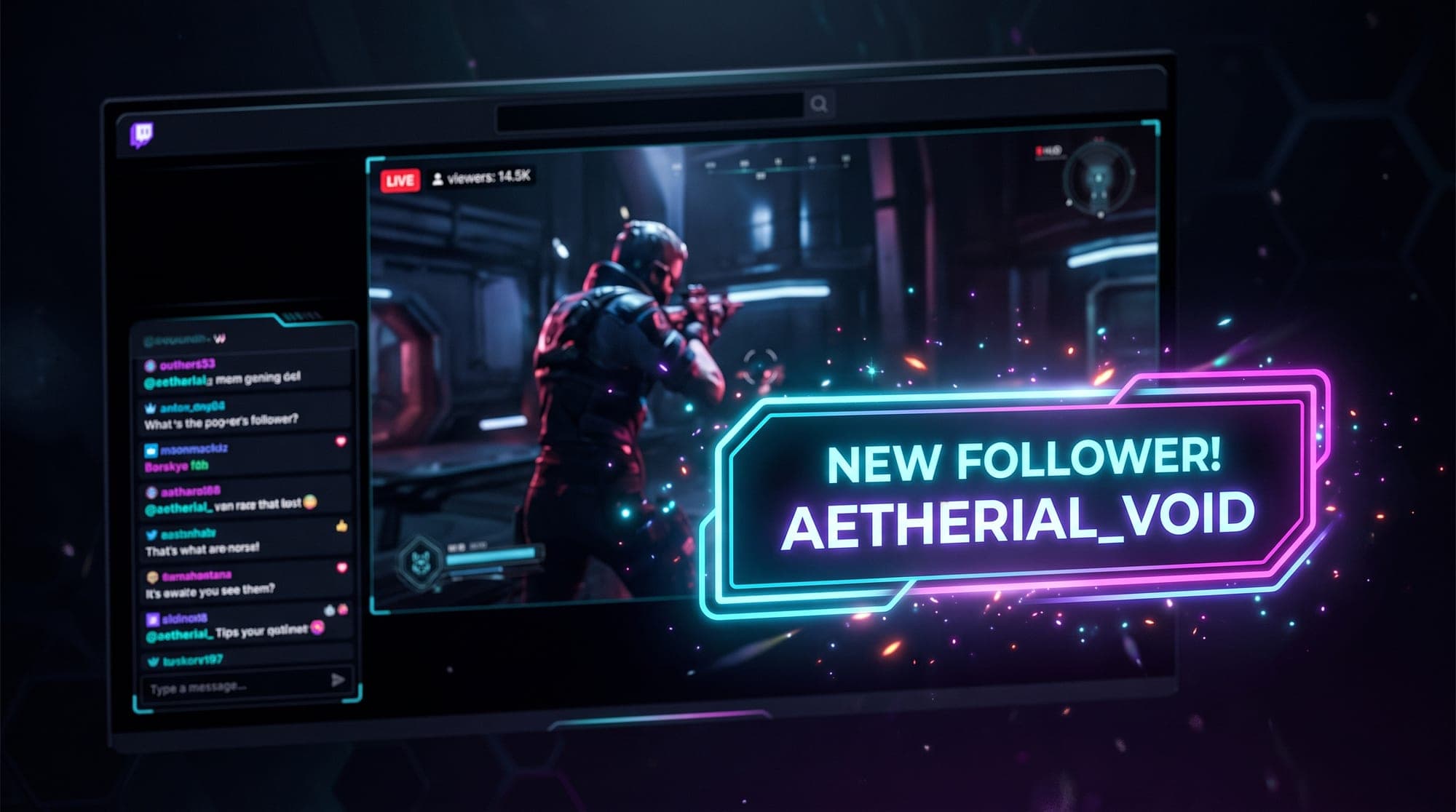
Someone follows your channel. For about four seconds, a graphic slides across your screen with their name on it, you read it out, you say thanks. That tiny loop is one of the strongest things a live stream has going for it, and it is why alerts matter more than their size on screen suggests.
Set up badly, they are a generic blue box with a stock sound that every other channel also uses. Set up well, they look like part of your channel and they make people want to trigger the next one.
This guide covers the alert types worth having, how to set them up in Streamlabs and StreamElements, how to get them into OBS, and the settings that actually change how they feel.
The alerts worth turning on
You can enable a dozen alert types. Most streamers only need five, and switching on all of them makes a stream feel noisy.
- Follow. The most frequent one, and for a small channel the most important. Keep it short, two to three seconds.
- Subscription. Someone paid. This one earns a longer, louder moment.
- Bits / donation. Same logic, and worth showing the amount and the message.
- Raid. Another streamer just sent you their audience. This is the highest-value alert you have, because a dozen strangers arrive at once and the first thing they see is your raid alert.
- Gifted subs. Worth separating from normal subs, because the reaction is different.
Host alerts still exist in some setups but Twitch retired hosting, so there is no longer a reason to configure one.
Setting up alerts in Streamlabs
Streamlabs calls this the Alert Box, and it is a single browser source that handles every alert type.
- Open the Streamlabs dashboard and go to Alert Box.
- Pick an alert type in the left column, for example Follows.
- Set the Layout, upload your own Image or Video, and pick a Sound.
- Set Alert Duration (2 to 3 seconds for follows, 5 to 8 for subs).
- Copy the widget URL at the top of the page.
Then in OBS or Streamlabs Desktop, add a Browser Source and paste that URL. Set the width and height to 1920 x 1080 and let the alert position itself inside that canvas rather than trying to resize the source.
If you are not sure how sources work yet, our Streamlabs overlays guide covers the basics first.
Setting up alerts in StreamElements
StreamElements does the same job through the Overlay Editor, which is more flexible and slightly more work.
- Go to Streams, then Overlays, and create or open an overlay.
- Add an Alertbox widget to the canvas.
- Select an event in the widget settings, upload your own media and sound, set the duration.
- Copy the overlay URL and add it in OBS as a Browser Source at 1920 x 1080.
The advantage here is that one overlay can hold your alerts, your chat box and your labels together, so a single browser source covers everything. The full walkthrough is in our StreamElements guide.
Getting alerts into OBS
Whichever service you use, the OBS side is identical and it is where most problems happen.
- In Sources, click + and choose Browser.
- Paste your widget URL.
- Set Width 1920 and Height 1080.
- Leave Shutdown source when not visible unchecked, otherwise the first alert after a scene change can be missed.
- Put the source above your overlay layers so alerts are never hidden behind a frame.
To test without waiting for a real follower, both Streamlabs and StreamElements have a test button in the dashboard.
One detail worth knowing: your alert browser source should sit in every scene where you want alerts. Many streamers put it only in their gaming scene and then wonder why nothing fires while they are on a starting soon screen or a BRB screen.
Animated alerts and file formats
A still PNG alert works. An animated one is noticeably better, and the format matters.
- WEBM with alpha is what you want. It carries transparency, so the animation floats over your gameplay instead of sitting in a black box.
- GIF works but the quality is poor and the transparent edges look jagged.
- MP4 cannot carry transparency at all, so it will show as a solid rectangle.
Keep the file small. An alert that takes two seconds to load is an alert that fires after the moment has passed.
Sound, duration and the settings people get wrong
Volume. Test your alert sound against your game audio, not in silence. What sounds fine in a quiet dashboard is often deafening over a firefight.
Duration. Follows at 2 to 3 seconds. Subs and donations at 5 to 8. Anything longer and you interrupt yourself mid sentence.
Alert queue. During a raid or a gifted sub train, alerts stack up. Both platforms let you set a delay between them. Two seconds is usually right; without it you get a wall of noise.
Text to speech. Tempting, and frequently abused. If you turn it on for donations, set a minimum amount and a character limit.
Position. Bottom centre or upper third are safest. Avoid the corners where your webcam frame and your chat box usually live.
Make your alerts match everything else
This is where most channels fall down. The overlay comes from one place, the alerts from a default template, and the result is a stream that looks assembled rather than designed. Viewers cannot always name what is off, but they feel it.
The fix is to take your alerts from the same set as everything else. Every animated overlay pack includes alerts built in the same style as the screens, panels and webcam frames, already exported as WEBM with alpha so they drop straight into a browser source. The enchanted forest pack and the neon city cyberpunk pack show how far apart two consistent looks can sit.
And if your channel graphics are still a work in progress, the free screen makers will get your starting soon, BRB, offline and ending screens done in the meantime.