DJ Stream Overlay Pack – Neon Music Studio
Cyberpunk / Neon

DJ Stream Overlay Pack – Neon Music Studio

5.0/5 · 4 selected reviews (2–5 stars)
$17.99Tax included

Save more: any 2 packs −15%, any 3 or more −25%. Applied automatically at checkout.

  • Broken file, we fix it or refund it. If a download fails or a file is corrupted, tell us within 14 days.
  • Setup help included. Stuck in OBS? Read the 5-minute guide or just ask.
  • A real person answers. Mohamed designs every pack here and reads every message.

Downloads are final once delivered. Full policy

What's inside

  • 50+ media files, including animated and static versions, plus a PDF installation guide
  • 4 stream screens: Starting Soon, Be Right Back, Stream Ending and Offline — animated MP4 + static JPG (1920 × 1080)
  • 6 alerts: Follower, Subscriber, Donation, Raid, Cheers and Tips — MP4 with audio + static JPG (1920 × 1080); not transparent alpha alerts
  • 24 Twitch panel PNGs (320 × 100), including Music, Schedule, About and Donate
  • Webcam frame: transparent animated WEBM + transparent static PNG (1920 × 1080)
  • Just Chatting layout: transparent animated WEBM (1920 × 1080)
  • Gameplay overlay PNG (1920 × 1080) with a transparent center
  • Chatbox decoration PNG (700 × 800); live chat widget not included
  • Stinger transition MP4 (about 3 seconds) + JPG reference image (1920 × 1080)
  • Twitch banner JPG (1200 × 480) + YouTube banner JPG (2560 × 1440)

OBS / Streamlabs / StreamElements · Original audio · No copyrighted content · Instant download

The details

Description

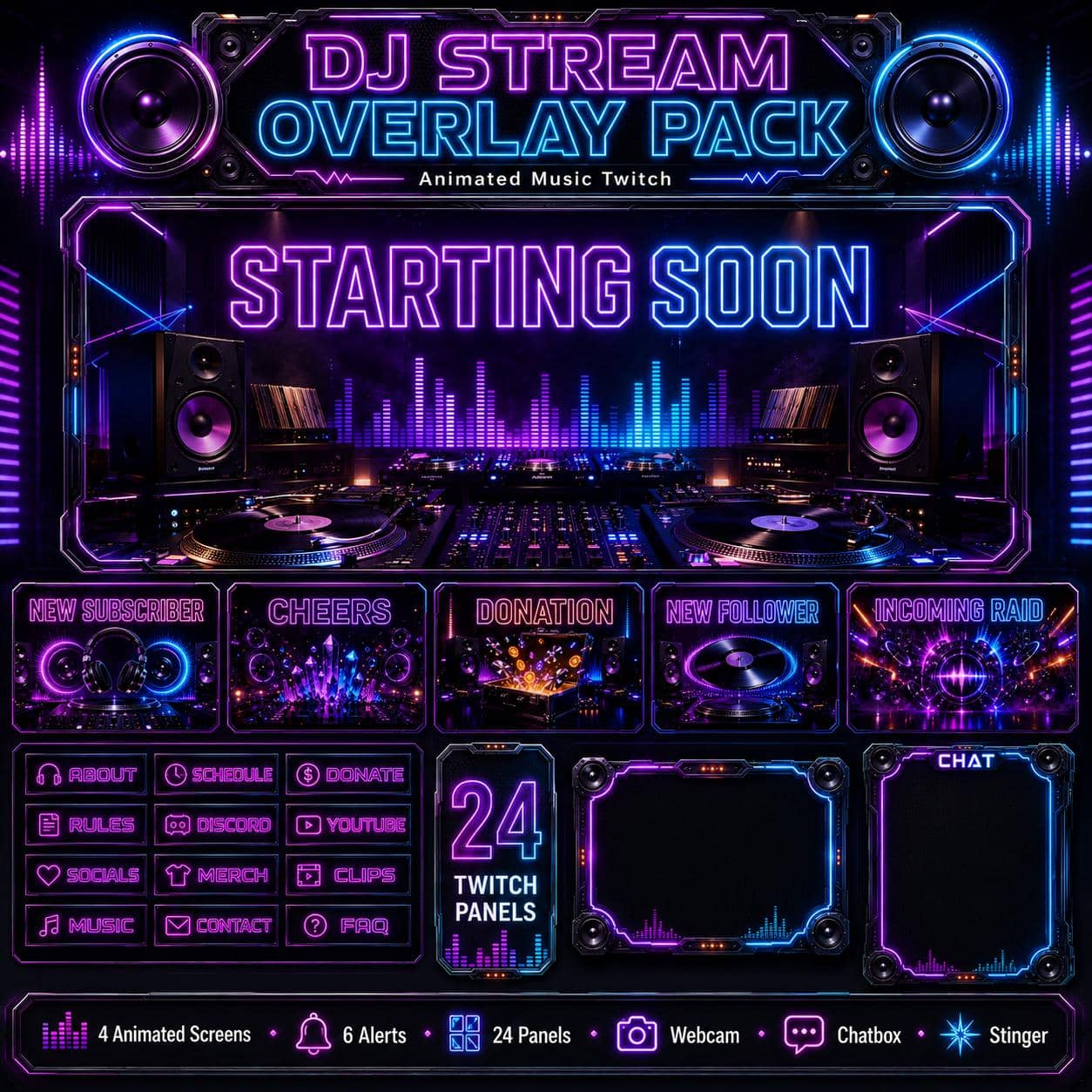
DJ Studio is a DJ stream overlay pack with a neon music-studio theme: turntables, vinyl records, speakers and equalizer-style graphics in purple, pink and cyan. The waiting screens place your stream inside a lit DJ booth, while the matching webcam frame and gameplay border carry the same speaker-and-light details into your live scenes.

Use the Starting Soon scene before a DJ set, the BRB screen during a break, and the Ending or Offline screen when the session finishes. For music production, listening sessions or conversations, the Just Chatting layout has one large transparent content area and a separate framed chat column. Its equalizer-style artwork is decorative; it is not a live audio visualizer that reacts to your music. Watch the two preview videos above to check the visual style before choosing the pack.

What comes with the DJ Studio pack

  • Four stream screens: Starting Soon, Be Right Back, Stream Ending and Offline. Each has an animated MP4 and a static JPG, all 1920 × 1080.
  • Six alerts: Follower, Subscriber, Donation, Raid, Cheers and Tips. Each has an MP4 with an audio track and a static JPG, all 1920 × 1080. These are standard full-scene MP4 alerts, not transparent alpha WEBM alerts.
  • 24 Twitch panel PNGs, 320 × 100: About, Alerts, Chat, Clips, Commands, Contact, Discord, Donate, Events, FAQ, Goals, Instagram, Links, Merch, Mods, Music, Rules, Schedule, Socials, Specs, Subscribe, TikTok, Twitter and YouTube.
  • Webcam frame: a transparent animated WEBM and a transparent static PNG, 1920 × 1080.
  • Just Chatting layout: a transparent animated WEBM, 1920 × 1080, with a large content window and a chat column.
  • Gameplay overlay: a PNG with a transparent center, 1920 × 1080.
  • Chatbox decoration: a PNG, 700 × 800. Live messages require your own chat widget or browser source.
  • Stinger transition: an MP4, approximately 3 seconds, and a JPG reference image, 1920 × 1080. The JPG is a still image, not a playable transition.
  • Channel banners: a Twitch JPG, 1200 × 480, and a YouTube JPG, 2560 × 1440.
  • PDF installation guide.

The download contains 53 media files plus the guide. This includes animated and static versions of the same designs, rather than 53 distinct designs. A static Just Chatting image is not included in the current ZIP.

Set up your DJ overlays for OBS

  1. Extract the ZIP to a permanent folder. Create a Starting Soon scene, add screens/starting_soon.mp4 as a Media Source, and enable Loop. Repeat for the other waiting screens. For the fixed alternative, add the matching JPG as an Image source instead.
  2. Add your camera to your live scene. Place extras/webcam_frame_alpha.webm above it as a looping Media Source, or use extras/webcam_frame.png as an Image source. Both frames have transparency, so the camera can show through the middle.
  3. For Just Chatting, add extras/just_chatting_alpha.webm above your camera or content sources and enable Loop. Add your live chat separately within the chat column. For a rhythm-game scene, layer extras/gameplay_overlay.png above your game capture.
  4. Upload the panel PNGs through your Twitch channel's panel editor, and configure the six alert events in your chosen alert service. For the scene-building workflow, follow our OBS overlay installation guide.

This is a set of ready-made media files, not an editable design project, a DJ application or a one-click OBS scene collection. Alert triggers, dynamic names and live chat need separate configuration. You can use the OBS-composed visuals while broadcasting to Twitch, YouTube or Kick, but alert-event and channel-panel support depends on the platform. Your choice of music and permission to broadcast it are separate from this graphics pack.
Customer feedback

Selected customer reviews

5.0

Average of 4 selected reviews (2–5 stars)

This average covers selected published reviews rated 2 to 5 stars only. One-star reviews are excluded; this is not the overall customer rating.

easy to download in minutes and set up was a breeze

Mark · 04 Jul 2026

Easy to use and love the art work! Will use again!

Crystal · 19 Jun 2026

ottimo prodotto e molto ben curato

Marco · 18 Jun 2026

Excellent package and perfect for DJ streams. Thank you!

D · 27 Apr 2026

Good to know

Frequently asked questions

Does the DJ Studio pack include static and animated files?+

Yes. All four waiting screens and six alerts include an MP4 and a matching static JPG. The webcam frame includes an animated WEBM and a static PNG. The current Just Chatting layout is an animated WEBM only. The stinger has an MP4 and a JPG reference image; only its MP4 plays a transition.

Which files are transparent?+

The webcam WEBM and PNG, the Just Chatting WEBM and the center of the gameplay PNG support transparency. The chatbox PNG is a decorative frame with a dark interior, not a live chat widget. JPG screens and the standard MP4 alerts do not have alpha transparency.

Is the equalizer a live audio visualizer?+

No. The equalizer-style graphics are part of the pre-rendered artwork and animation. They do not listen to or react to the track you are playing. The pack provides stream visuals, not music-production or DJ software.

How do I add the pack to OBS?+

Extract the ZIP, use Media Source for MP4 and WEBM files, and use Image for PNG and JPG files. Enable Loop for waiting screens and animated frames. Place transparent frames above your camera or game capture. Live chat and automatic alert triggers need separate configuration. Our OBS installation guide explains the scene-building steps.

Can I use it for a DJ set or a music stream on Twitch, YouTube or Kick?+

The visuals can be arranged in OBS before broadcasting. The available alert events and channel features depend on your platform and service. The Twitch panels are channel images; the pack does not provide music rights or permission to broadcast tracks.

How do I receive the files after purchase?+

Delivery is instant and digital. Right after checkout you get a secure download link by email and in your account - no waiting and no shipping.

Can I get a refund?+

Because the products are digital and delivered instantly, all sales are final. If a file is corrupted or a download genuinely fails, contact us within 14 days and we'll fix it or, at our discretion, issue a refund.

You might also like

Related packs