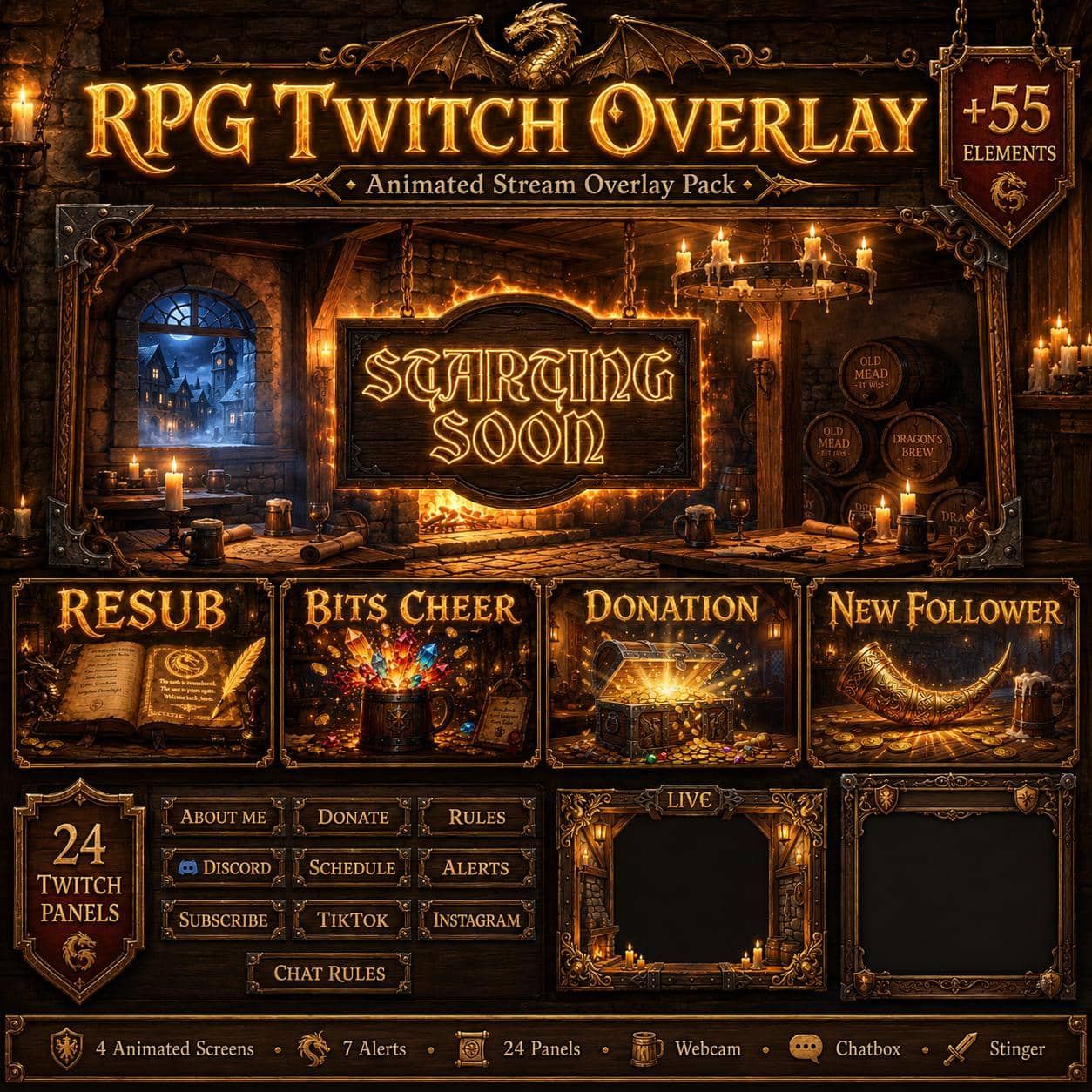
Medieval Tavern is a fantasy RPG Twitch overlay pack built around a candlelit adventurer's inn. Wooden beams, barrels, maps and a glowing hearth frame the waiting screens, while carved borders, shields and gold dragon details carry the theme into your live layouts.
Use the tavern screens before a tabletop session, between campaign segments or during a break from a fantasy RPG. The gameplay frame leaves a large transparent center for your game capture. For conversations or campaign recaps, the Just Chatting design pairs one large content area with a separate chat column. It is not a pre-arranged multi-player camera grid. Watch the two preview videos above to check the artwork and animation.
What comes with the Tavern pack
- Four stream screens: Starting Soon, Be Right Back, Stream Ending and Offline. Each includes an animated MP4 and a static JPG, all 1920 × 1080.
- Seven alerts: Follower, Subscriber, Donation, Raid, Bits Cheer, Gifted Sub and Resub. Each includes an animated MP4 with sound and a static JPG, all 1920 × 1080.
- 24 Twitch panel PNGs, 320 × 100: About Me, Alerts, Chat Rules, Commands, Contact, Discord, Donate, Extensions, FAQ, Follow, Games, Instagram, Merch, Mods, Rules, Schedule, Specs, Sponsors, Subscribe, TikTok, Twitter, VIP, Welcome and YouTube.
- Webcam frame: a transparent animated WEBM and a transparent static PNG, 1920 × 1080.
- Just Chatting layout: a transparent animated WEBM and a static JPG, 1920 × 1080.
- Gameplay overlay: a transparent PNG, 1920 × 1080.
- Chatbox decoration: a transparent PNG, 700 × 800.
- Stinger transition: an MP4 and a JPG reference image, 1920 × 1080. The JPG is a still image, not a playable transition.
- Channel banners: a Twitch JPG, 1200 × 480, and a YouTube JPG, 2560 × 1440.
- PDF installation guide.
Build your Tavern scene in OBS
- Extract the ZIP to a permanent folder. Add
screens/starting_soon.mp4as a Media Source in your Starting Soon scene and enable Loop. Repeat for the other animated screens. Use an Image source for a static JPG screen instead. - In your gameplay scene, add
extras/gameplay_overlay.pngas an Image above your game capture. Add your camera, then layerextras/webcam_frame.webmabove it as a looping Media Source, or useextras/webcam_frame.pngas an Image. - For Just Chatting, use
extras/just_chatting_alpha.webmas a looping Media Source above your content and chat sources. The JPG alternative is opaque: place your camera or content above its dark placeholder, rather than behind it. - Upload the panel images to your Twitch channel's panel editor. For the complete scene-building workflow, follow our OBS overlay installation guide.
The pack supplies ready-made media, not a one-click OBS scene collection or editable design project. Live chat messages require a separate widget or browser source; automatic alert triggers must be configured in your alert service. The same OBS-composed visuals can be used in a stream to Twitch, YouTube or Kick, but available alert events and channel-panel features depend on the platform.