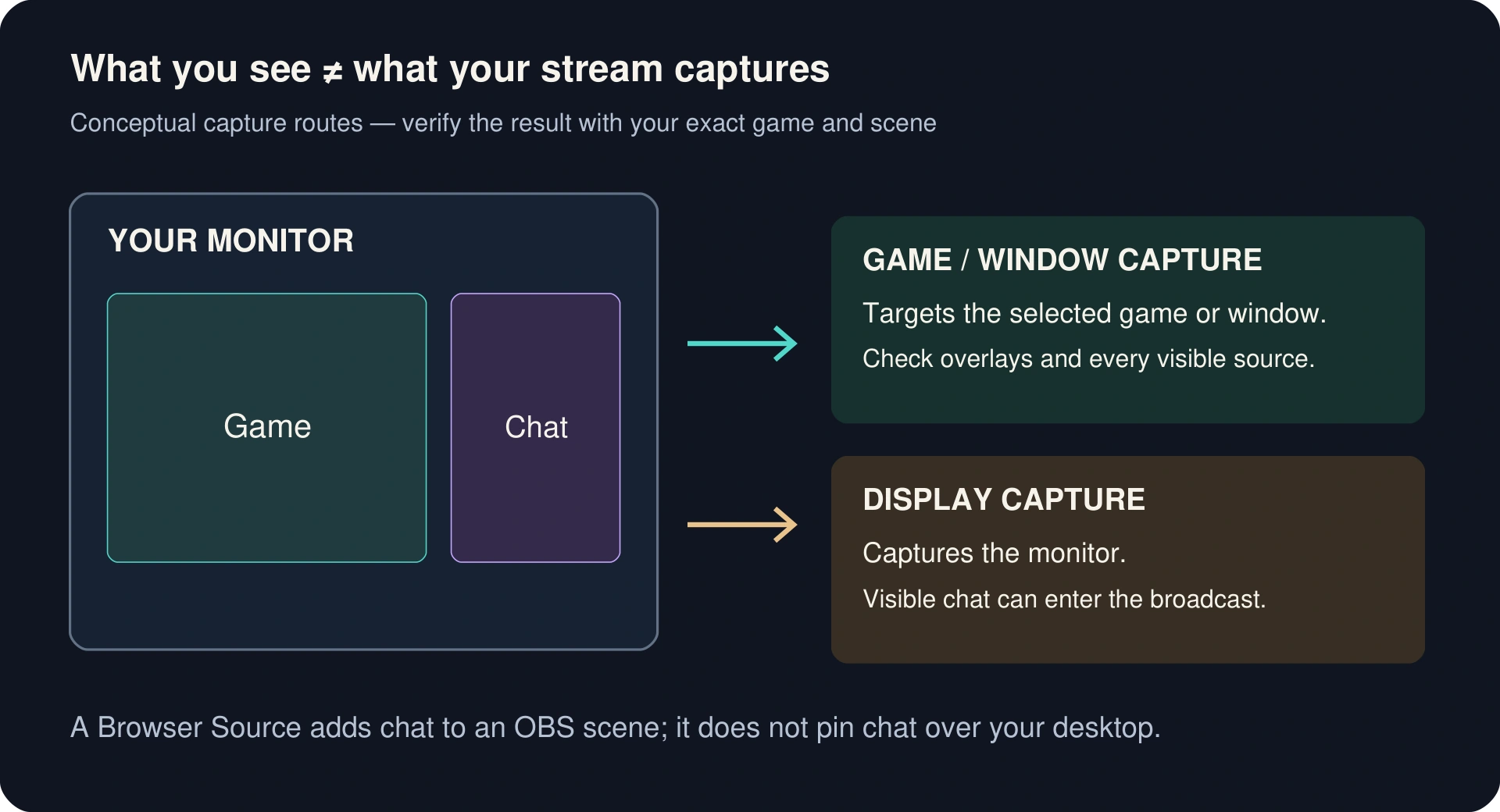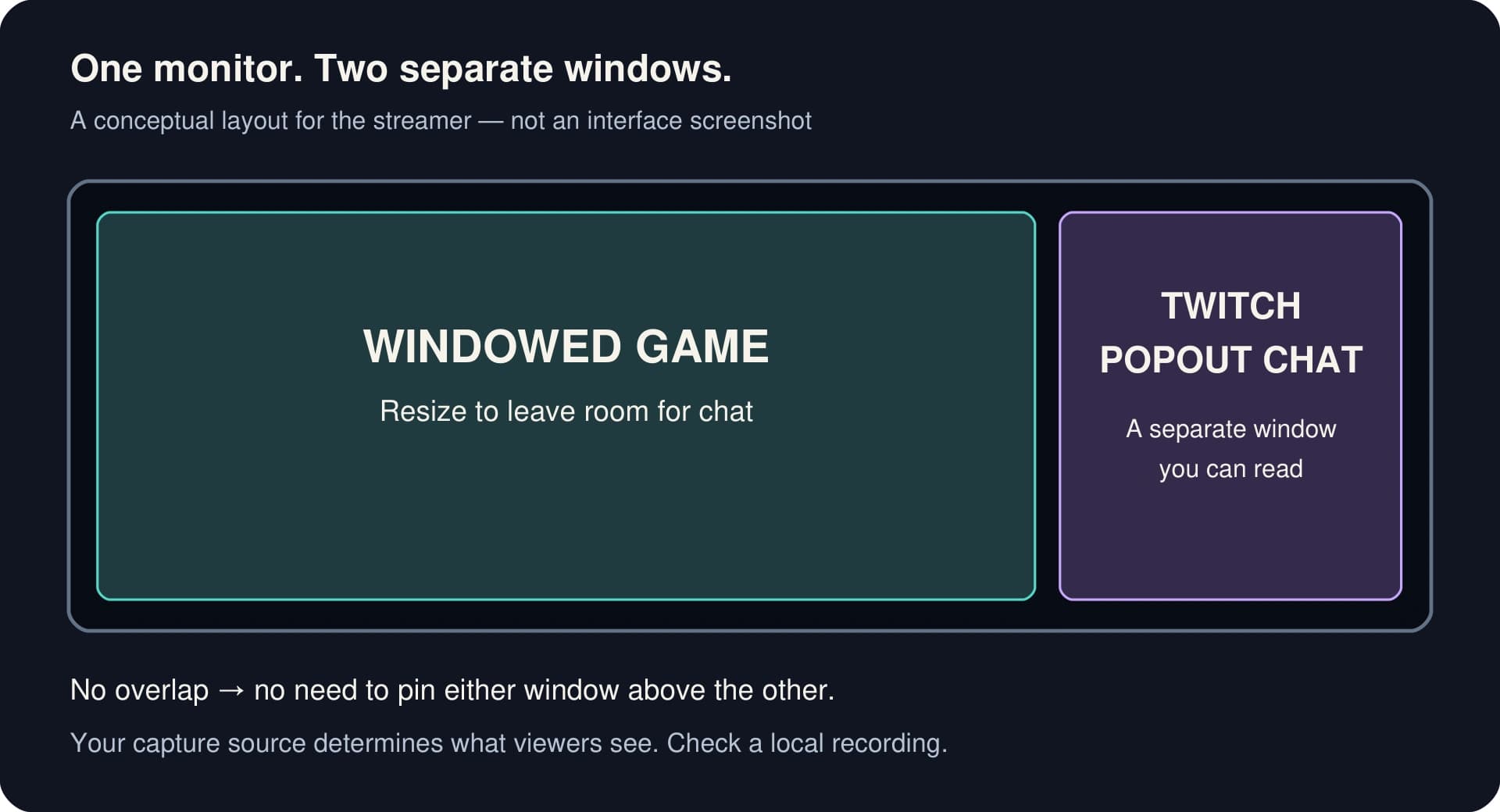
The simplest setup is a windowed game with Twitch's popout chat beside it. You can see both on one monitor without adding a chat widget to your stream. If you want the game to fill more of the screen, a pinned chat window is another option on Windows, but compatibility needs checking with your game.
The important distinction: putting a chat box in your OBS scene helps viewers see chat. It does not make that chat float over the game you are playing.
This guide covers reading your own chat during gameplay. To put messages in the broadcast instead, use our guide to adding a chat overlay in OBS.
Choose a setup before installing anything
| Your situation | Start with | What you give up |
|---|---|---|
| You can make the game window smaller | Popout chat beside the game | Some desktop space for the chat column |
| You need a larger game window on Windows | Try pinning the popout over a windowed or borderless game | The chat window covers part of the game; compatibility varies |
| You stream art, coding or a desktop task | Keep chat in a visible OBS dock or separate window | OBS or the chat window needs visible space |
| You must use exclusive fullscreen | Read chat on a phone, if available | This uses another device |
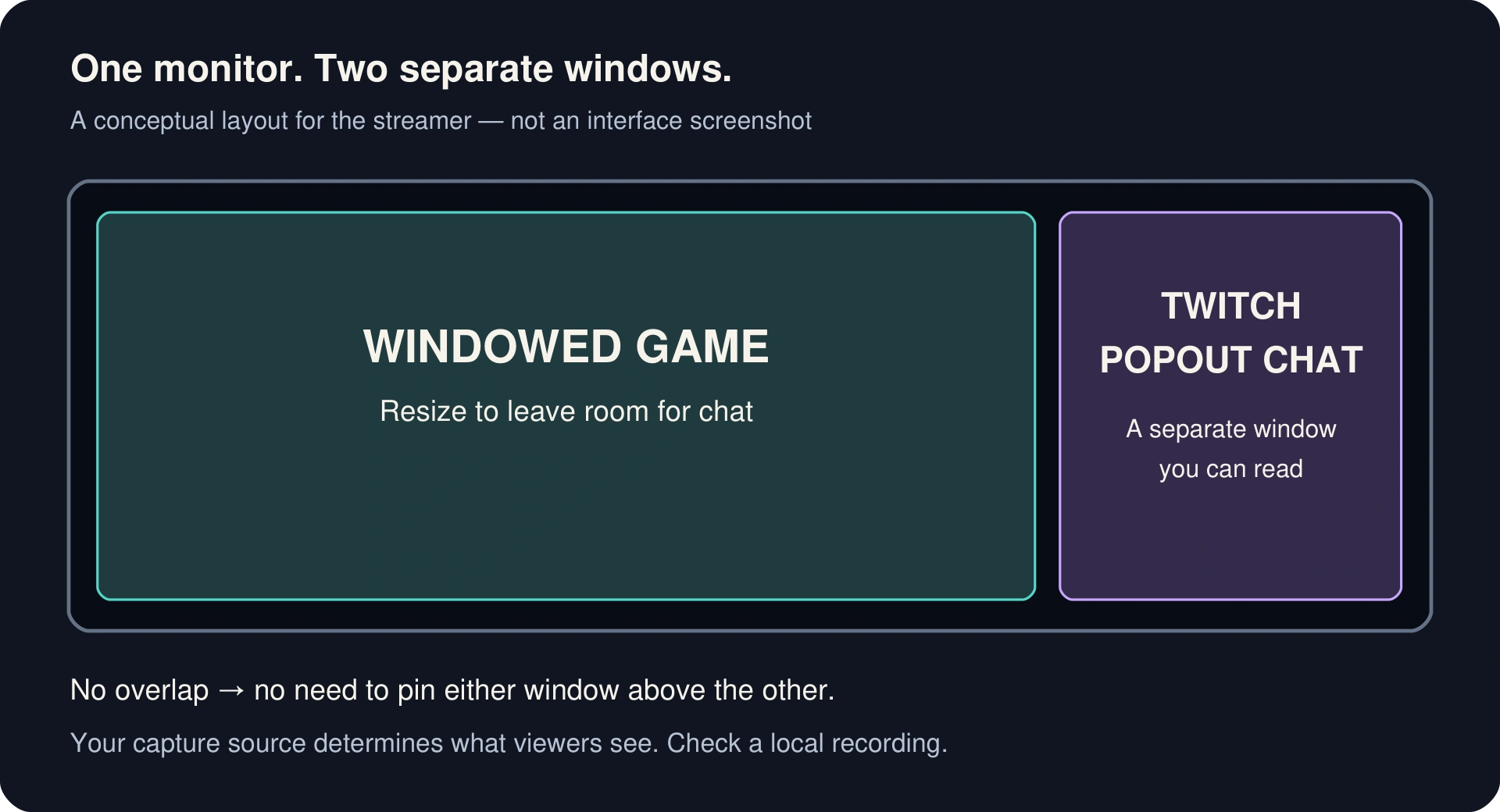
Layout diagram, not a screenshot. The separate chat window is for the streamer; its visibility in the broadcast depends on the capture source.
Method 1: keep Twitch popout chat beside your windowed game
This is the place to start if you want to avoid extra software.
- Open your Twitch channel on a desktop browser and find the chat panel. On an offline channel, open the Chat tab if necessary.
- Open the gear-shaped Chat Settings menu and choose Popout Chat. The French interface calls this Chat fenêtré. Allow the popup for Twitch if your browser blocks it.
- Put the game in Windowed mode in its own video settings. Resize it to leave a column of desktop space for chat. A borderless window that fills the entire monitor will not leave that space.
- Place the chat window in that column. Keep the two windows from overlapping so neither depends on being “always on top.”
- In the chat window, open Chat Settings → Chat Appearance and adjust Font Size until you can read comfortably from your normal playing position. Reduce the browser zoom only if the surrounding controls take too much space; check that the messages remain readable.
- Click back into the game and check that the chat column remains visible. Read and respond between safe moments in gameplay.
If you lose the detached window, this address opens the chat-only page:
https://www.twitch.tv/popout/YOUR_CHANNEL/chat?popout=Replace YOUR_CHANNEL with your actual Twitch username. In a browser that opens it as a tab, move that tab to a separate browser window before arranging it beside the game.
Trade-off: your game occupies less of your physical monitor. Capturing the game window in OBS does not automatically include the surrounding desktop, but check how the captured image fits your stream canvas. Do not stretch a differently shaped game image just to remove empty space.
Method 2: try a pinned chat window on Windows
If a narrow side-by-side layout is too cramped, you can try keeping the popout above a larger game window. This is optional, not a requirement for Method 1.
Microsoft's PowerToys Always On Top can pin the active window using Windows + Ctrl + T by default. Open the Twitch popout, select its window, then use that shortcut. Use it again to unpin.
Start with a windowed or borderless game. Put the chat where it does not hide aiming information, subtitles or menus. Then focus the game and verify whether the pinned window stays visible.
PowerToys has a setting that prevents activation when Game Mode is on. It also cannot guarantee priority over other topmost windows. Do not assume this method will work in exclusive fullscreen or with every game. If chat disappears, return to the side-by-side layout or use another device rather than repeatedly changing unrelated game settings.
A pinned browser window is still interactive. It can take focus if you click it, and this method does not provide a transparent, click-through chat overlay. Make sure the window does not sit over controls you need to click.
What about the Twitch chat dock in OBS?
A chat dock is useful while OBS is visible, such as between rounds or during a desktop stream. It lives in the OBS workspace; adding it does not pin chat over a different application's fullscreen window.
In our Windows check with OBS Studio 33.0.1 portable, the menu was Docks → Custom Browser Docks: a top-level Docks menu, rather than a submenu under View. In the French interface shown below, it is Docks → Docks Internet personnalisés. We added the Twitch popout address and confirmed that the chat loaded as a floating dock.
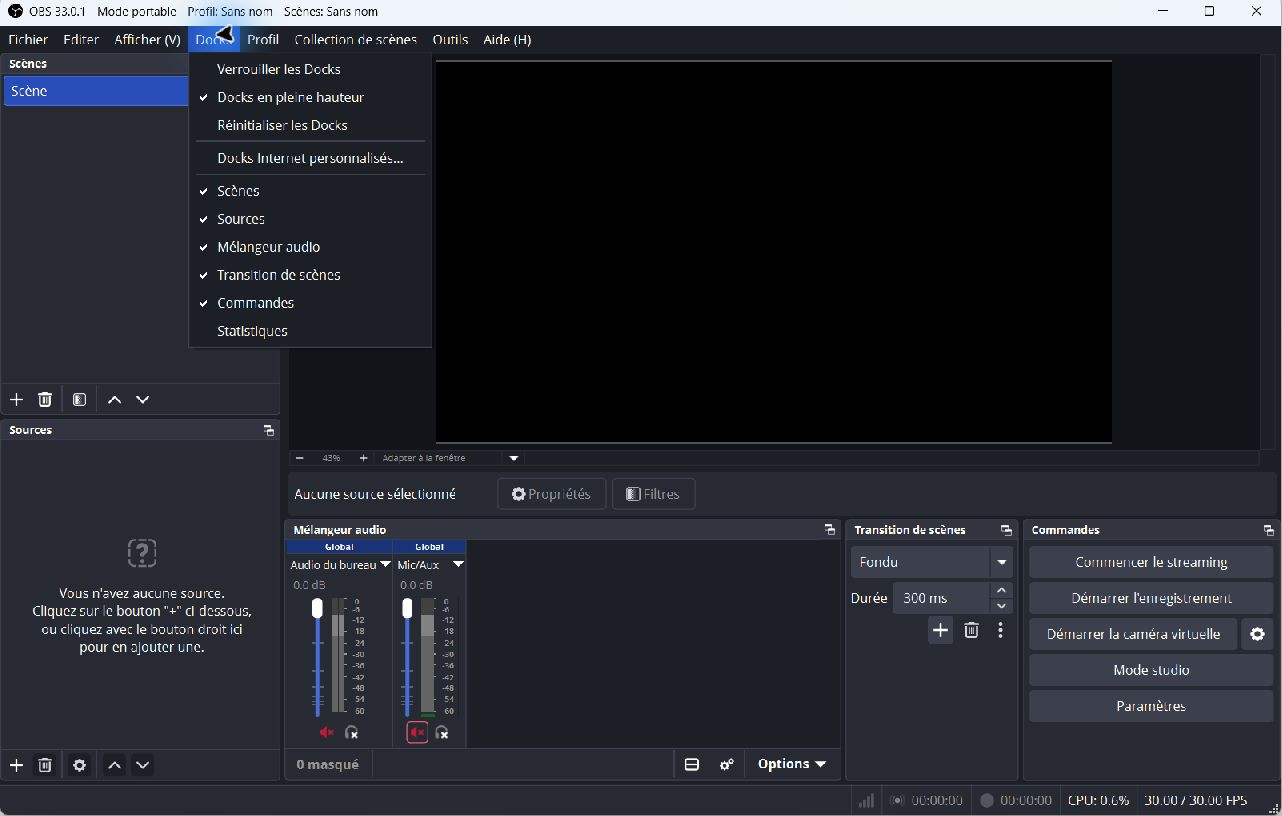
Actual OBS screenshot, 11 November 2026. Interface language: French.
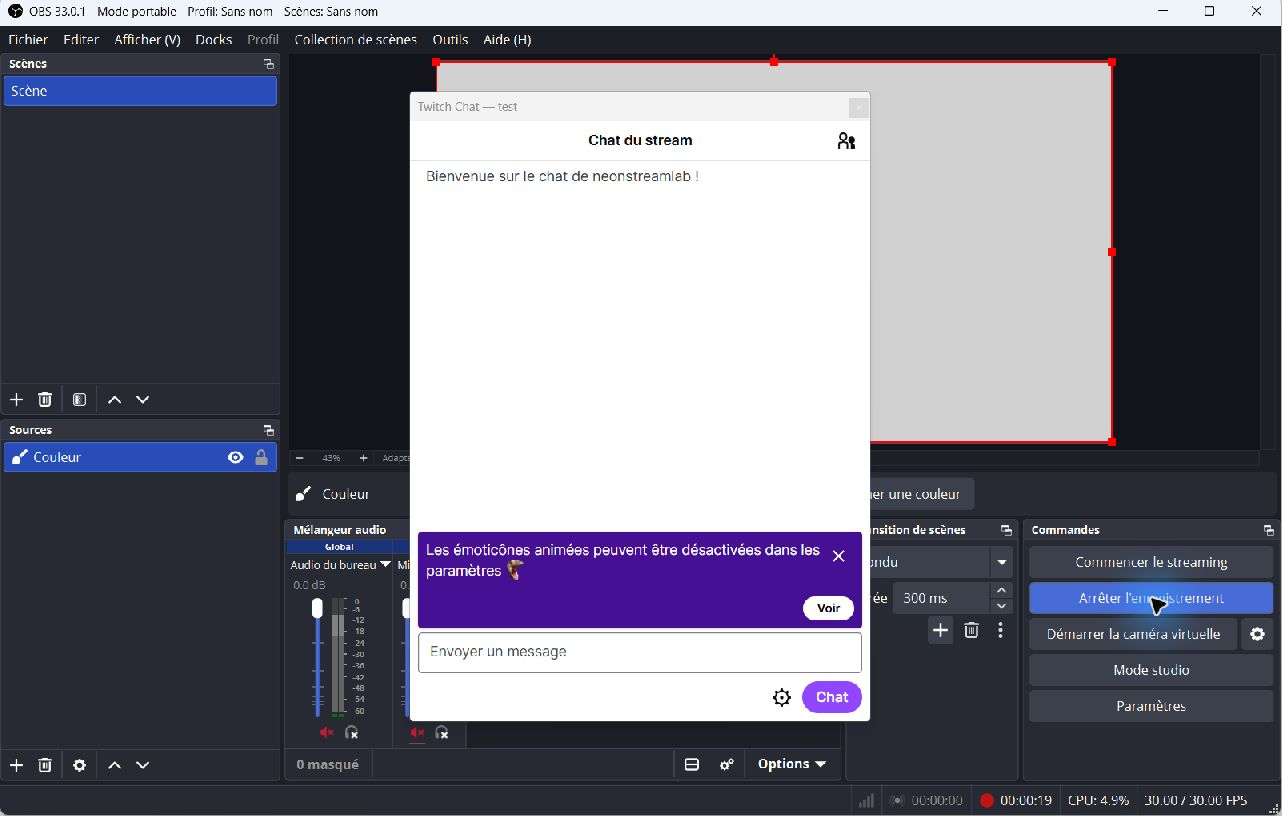
Actual OBS screenshot during our local recording. The grey rectangle is a deliberately plain test scene, not a game.
What our recording showed: we recorded the solid-color scene for 37 seconds with the floating Twitch dock visibly in front of the OBS workspace. The saved video contained only the plain scene; the dock did not appear. This confirms the dock/scene distinction in this setup. It does not test Game Capture, Display Capture or an exclusive-fullscreen game.
You do not need to rebuild your stream layout to use the Twitch popout method above. If you already have an OBS chat dock, keep it as a convenient way to read chat when you return to OBS. Installing an on-stream chat widget will not solve the separate problem of seeing messages while the game covers your desktop.