Kick Stream Overlays - Built for Kick Streamers
2 packs in this theme.
Kick overlays are added in your broadcast software before the stream reaches Kick. This curated selection compares two looks: a Shark / Ocean theme and a Soulslike dark-fantasy setting. Preview both packs and check the included files for your scene layout. Their graphics do not configure your stream connection or connect alert events automatically.
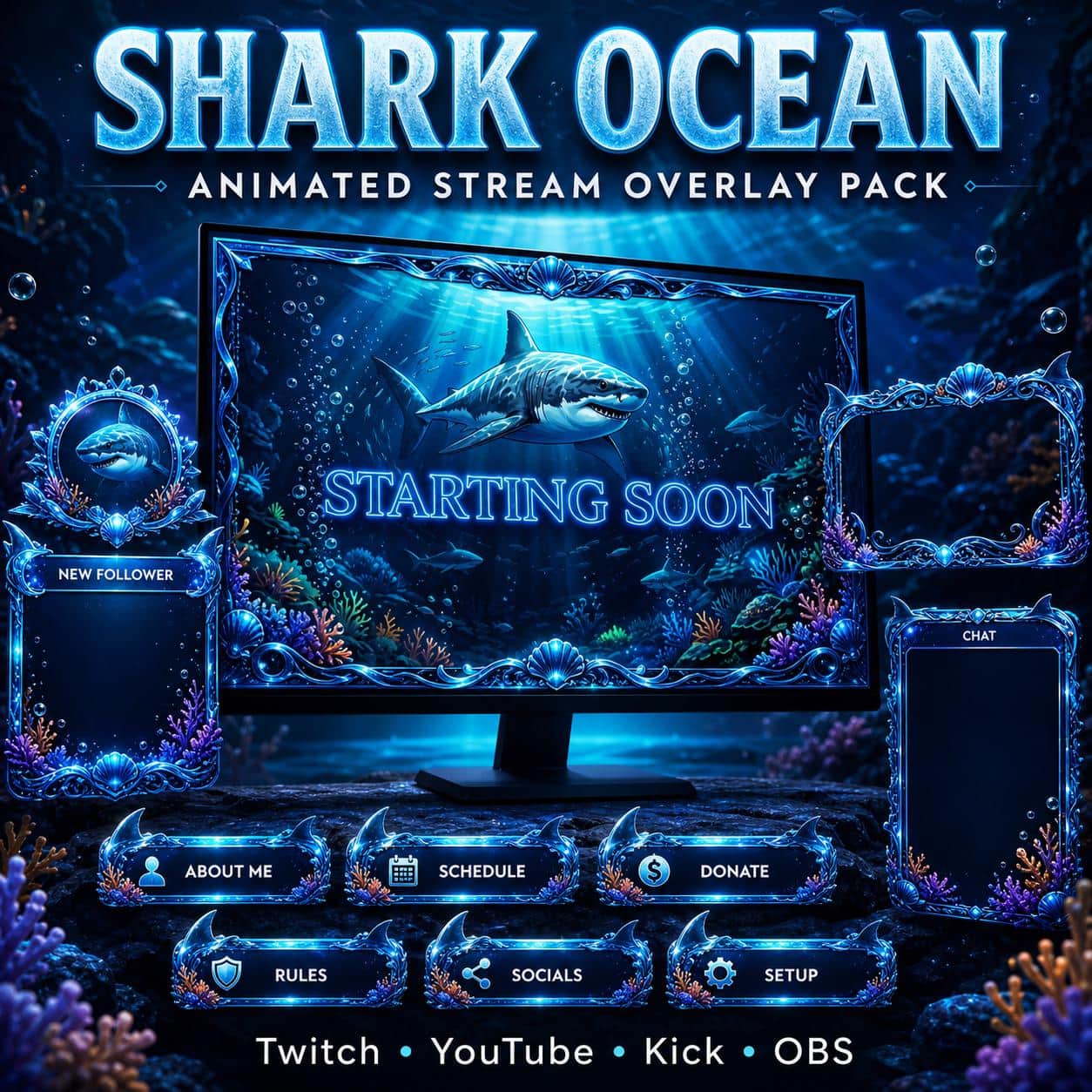
Shark Twitch Overlay Pack | Animated Ocean Stream Screens Alerts Panels Webcam Stinger
3 selected (2–5★)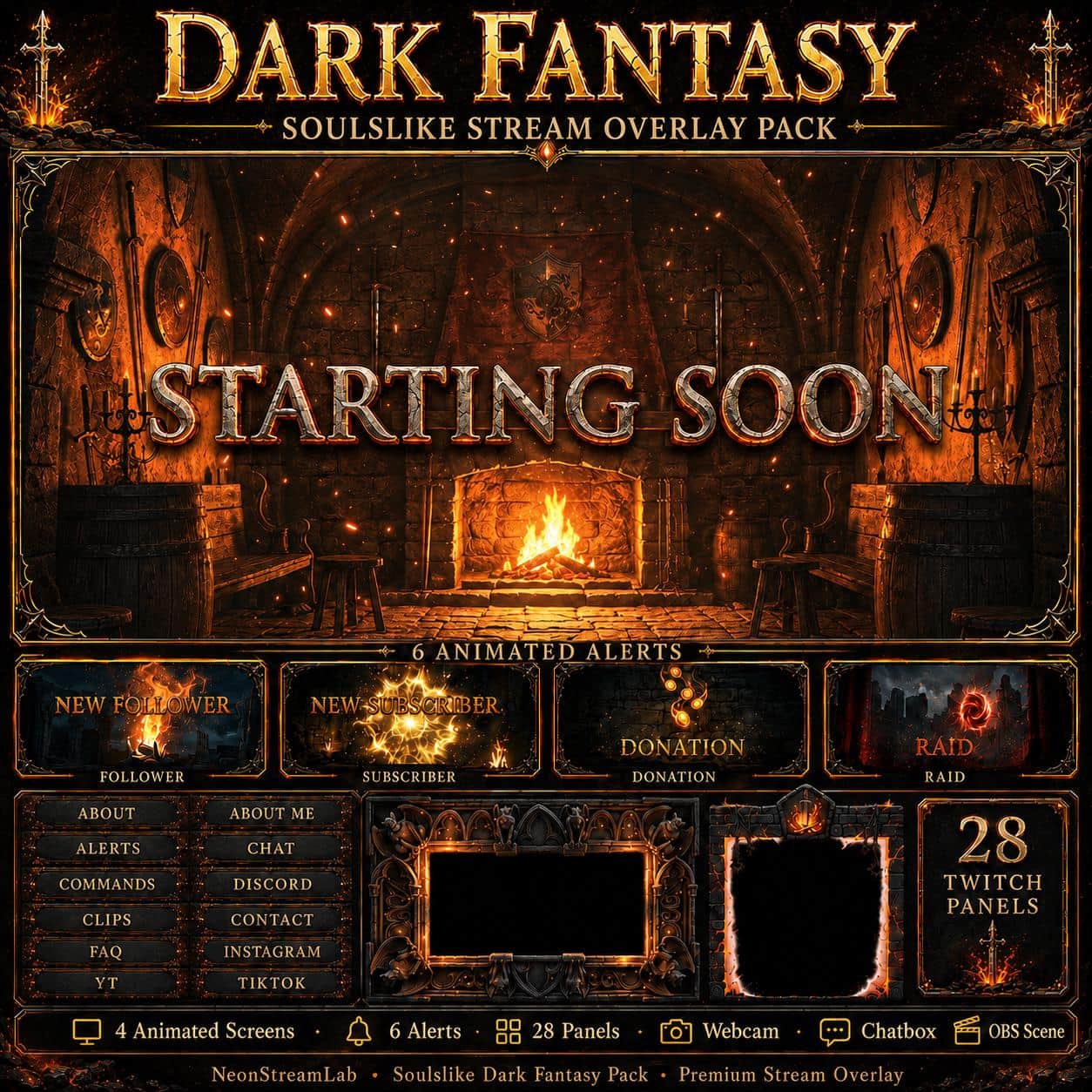
Dark Fantasy Stream Overlay Pack | Soulslike Animated Twitch Screens Alerts Panels Webcam
8 selected (2–5★)Choose a Kick overlay for the way you stream
Start with your scene layout, then choose the atmosphere. The two packs above are a curated starting point; a channel does not need a different set of graphics for every game it broadcasts.
Ocean or dark fantasy?
The Shark / Ocean pack takes your channel towards a marine setting, while the Soulslike pack gives it a dark-fantasy direction. Watch each preview alongside the games and camera background you normally use. Check that the frame leaves room for your face and that decorative details will not cover the game's interface. Use the individual product page to compare the actual screens and files, rather than assuming both packs contain the same extras.
Set up the artwork in OBS
Your overlay is part of the scene you send to Kick. In OBS, add a screen video as a Media Source and a static frame as an Image Source. Place the frame above your webcam in the Sources list, then check the result in a short local recording. Your Kick connection is configured separately in the streaming settings. Follow the setup guide supplied with the chosen pack for its specific files.
Check alerts separately
An alert animation is the visual asset, not the service that detects a follow or subscription. Before buying, check the pack's file list and the Kick events supported by your alert provider. If you only want to try the look of a scene first, a free starter pack gives you a smaller set of graphics to test before choosing a full collection.