20% off everything

Pixel Art Stream Overlay: What It Is and How to Use It

Pixel Art Stream Overlay: What It Is and How to Use It

A pixel art stream overlay is a graphic layer featuring pixelated, retro-style designs placed over your live stream to create visual branding and enhance viewer engagement. Think of it as a digital frame around your gameplay or webcam feed. It tells viewers who you are before you say a single word. Streamers use these overlays in software like OBS, Streamlabs, and StreamElements to build a consistent visual identity across Twitch, YouTube, and Kick. Neonstreamlab specializes in exactly this kind of themed, animated overlay work, with over 192 streamers rating its packs 4.9 out of 5.

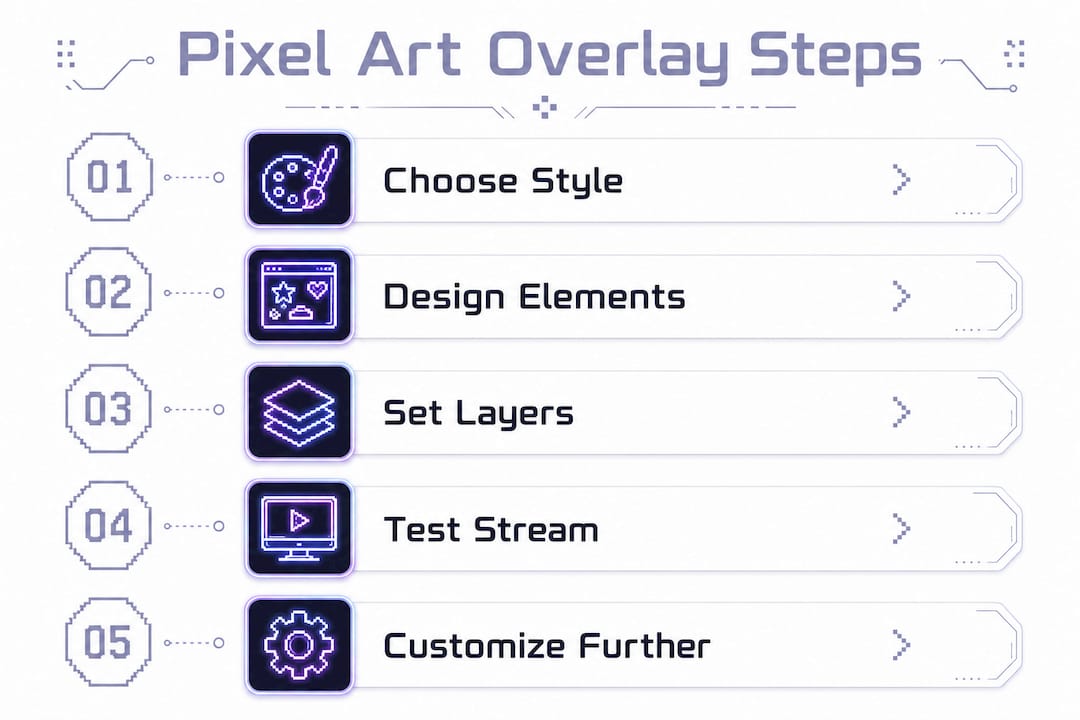
Infographic showing pixel art overlay setup steps

What is a pixel art stream overlay and how does it work in OBS?

A stream overlay is a graphical skin that sits on top of your gameplay or webcam feed inside your streaming software. The "pixel art" part refers to the visual style: blocky, grid-based graphics that evoke classic video games from the 8-bit and 16-bit eras. That retro look is a deliberate branding choice, not a technical limitation.

Setting up a pixel art overlay in OBS comes down to correct source layering. The standard order from bottom to top is:

  1. Game Capture at the base layer so your gameplay fills the canvas
  2. Overlay graphics in the middle layer, sitting above the game
  3. Webcam feed on the top layer so your face stays visible

OBS Scenes and Sources work like a stage production. Scenes are your different "sets" (gameplay, Starting Soon, BRB), and Sources are the individual ingredients inside each scene. Keeping these organized prevents visual chaos and makes switching between scenes fast and clean.

Animated pixel art overlays use the Media Source feature in OBS. You add your animated file, then check the Loop option so the animation plays continuously without interruption. Static overlays use PNG files and require no special setup beyond adding an Image Source.
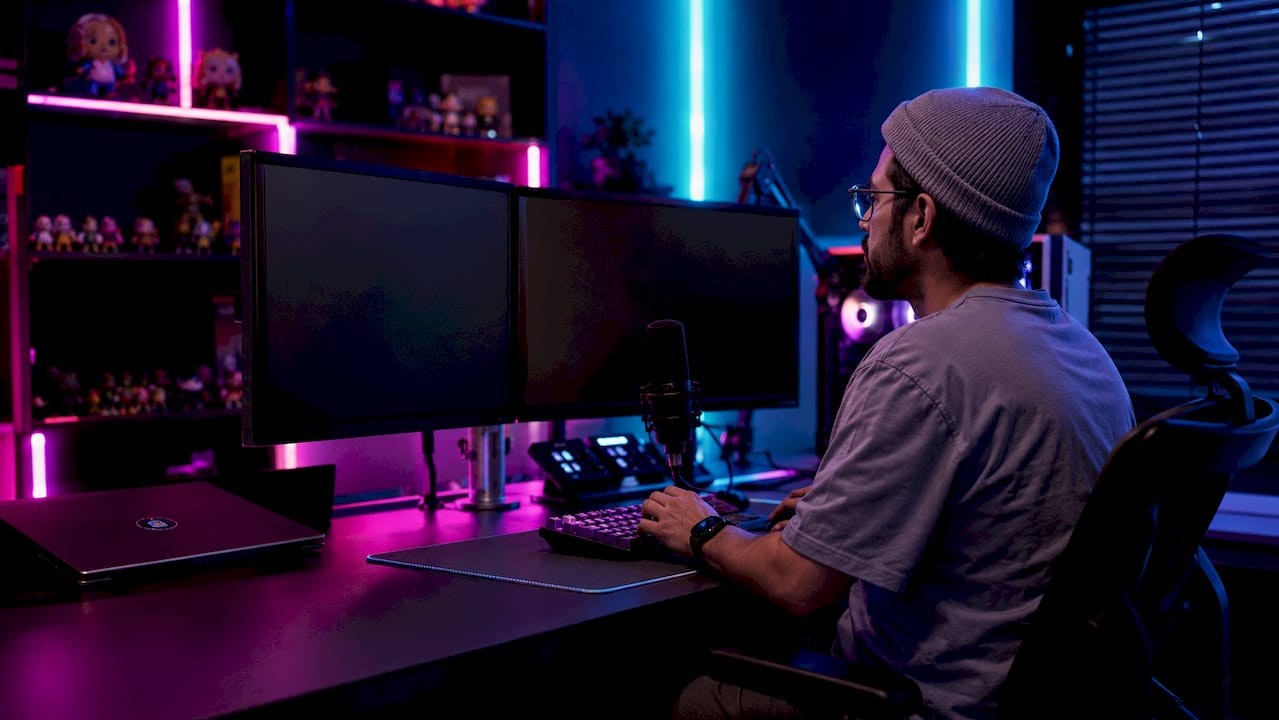
Hands controlling OBS overlay setup on desktop PC

Pro Tip: Name every source clearly in OBS ("Pixel Webcam Frame," "Pixel Chat Box") so you can find and adjust elements quickly mid-stream without hunting through a messy list.

Static vs. animated overlays: which format should you use?

Static overlays use PNG format and are light on your CPU and GPU. They are a great starting point for beginners who want a clean look without performance concerns. Animated overlays use WEBM format, which balances visual smoothness with resource efficiency far better than GIFs or MP4 files. WEBM is the preferred format for animated overlays because it keeps your stream running without frame drops. If your PC is mid-range, start with a static pixel art pack and add animated elements one at a time.

What design principles make pixel art overlays actually work?

Good pixel art overlay design keeps your gameplay as the star of the show. The overlay is the frame, not the painting. Every element you add should serve a purpose: a webcam border, a chat box, an alert area, or an info panel.

The most common mistake beginners make is overcrowding the screen with too many pixel elements at once. A cluttered overlay pulls the viewer's eye away from the game and creates visual noise. The fix is simple: use fewer elements, and make each one count.

Here are the core design rules to follow:

  • Match your color palette to your game. A cyberpunk pixel overlay clashes with a cozy farming simulator and confuses viewers about your channel's identity.
  • Keep webcam frames and chat boxes minimal. Thin borders and small labels let the content breathe.
  • Use modular elements. Packs with multiple variants, like seasonal or alternate color versions, let you refresh your look without rebuilding your entire setup.
  • Maintain visual hierarchy. Your game takes 70–80% of the screen. Your overlay fills the edges and corners.
  • Limit your pixel art to 2–3 accent colors. More than that creates a patchwork look that feels unfinished.

Pixel art overlays should reflect your channel's personality and complement the game you play. A mismatch between overlay style and game genre is one of the fastest ways to lose viewer trust in your brand.

Pro Tip: Start with just a webcam frame and a chat box in your pixel art style. Add more elements only after you've streamed with the basic setup and confirmed it feels right.

Why visual hierarchy matters more than you think

Visual hierarchy is the order in which a viewer's eye moves across your screen. Your game should always win that competition. Overlays that use large pixel art banners across the top or bottom of the screen eat into gameplay real estate and frustrate viewers who came to watch you play. Keep decorative elements to the sides and corners. Use size and contrast intentionally: smaller, lower-contrast overlay elements recede into the background, while your gameplay pops forward.

How can you create or customize your own pixel art overlays?

You have two main paths: build your own or grab a ready-made pack. Both are valid, and the right choice depends on your time, budget, and design skills.

Building from scratch

These tools handle pixel art creation well:

  • Aseprite is the industry standard for pixel art. It exports transparent PNGs and animated GIFs or spritesheets that you can convert to WEBM.
  • Figma works well for laying out overlay compositions, especially if you want to combine pixel art assets with text labels and info panels.
  • Canva offers pixel art templates for streamers who want a faster, drag-and-drop workflow without learning dedicated pixel art software.

When exporting, use transparent PNG for static elements and WEBM for anything animated. Transparent backgrounds let your game show through the overlay without a white or black box blocking the view.

Using a ready-made pixel art pack

Pre-built packs save hours of design work and come with matched elements: webcam frames, chat boxes, alert animations, and info panels all in the same pixel art style. Custom pixel art alerts for followers, subscribers, and donations slot directly into your layout and keep your branding consistent from the gameplay screen to the notification pop-up.

Approach Best for Trade-off
Build from scratch Full creative control Time-intensive, requires design skills
Ready-made pack Fast setup, matched elements Less unique unless customized
Custom order Unique brand identity Higher cost, longer lead time

Neonstreamlab offers instant-download overlay packs that work with OBS, Streamlabs, and StreamElements. All packs include original, copyright-free audio so you never have to worry about DMCA strikes on your stream recordings.

Pro Tip: Even with a pre-built pack, change at least one color or swap one element to make it feel personal. Viewers notice when a channel has a distinct look versus a default template.
Ready to upgrade your stream? Get 40+ animated overlays in one matching pack — now 20% off.

Browse packs

What are the best ways to use pixel art overlays across different stream types?

Pixel art overlays adapt well across streaming genres because the retro style carries a wide emotional range. A dark, neon-accented pixel pack fits a cyberpunk RPG. A soft, pastel pixel pack fits a cozy life simulator. A gritty, monochrome pixel pack fits a survival horror game. The key is matching your overlay theme to your content mood so the whole stream feels intentional.

Here are practical tips for common stream types:

  • RPG and fantasy streams: Use warm earth tones and medieval pixel art borders. Pair with a pixel art health bar or quest log panel for immersion.
  • Cozy and simulation streams: Soft greens, pinks, and blues with rounded pixel frames create a welcoming atmosphere. Check out Neonstreamlab's cozy overlay options for this style.
  • FPS and action streams: High-contrast, angular pixel art with minimal decoration keeps the focus on fast gameplay. A thin pixel border and a small webcam frame work best here.
  • Just Chatting streams: A full-screen pixel art background with a centered webcam frame and visible chat box creates a clean, branded look. Read the Just Chatting overlay guide for a full setup walkthrough.
  • Starting Soon and BRB scenes: Animated pixel art loops work perfectly here. A looping pixel art scene with your channel name and a countdown timer looks professional and keeps viewers engaged while they wait.

Effective overlay elements combine decoration with interactive channel info, like alerts and panels, to improve communication with viewers. An alert that matches your overlay style turns a functional notification into a branded moment.

Key Takeaways

A pixel art stream overlay works best when it matches your game's visual tone, uses correct OBS layering, and keeps gameplay as the clear visual priority.

Point Details
Layer order in OBS Place game capture at the bottom, overlay in the middle, and webcam on top.
Format choice matters Use PNG for static overlays and WEBM for animated ones to protect performance.
Design restraint wins Limit pixel elements to corners and edges so gameplay stays the main focus.
Match style to content Cyberpunk overlays suit dark RPGs; cozy pixel packs suit simulation games.
Ready-made packs save time Pre-built packs with matched alerts and panels set up faster than building from scratch.

Why pixel art overlays are worth the effort (and where most streamers go wrong)

Pixel art overlays appeal to me because they carry genuine personality. A well-designed pixel art frame tells viewers something real about your channel before you open your mouth. That kind of instant visual communication is hard to fake and even harder to achieve with a generic overlay template.

What I've seen trip up a lot of streamers is the temptation to add more. A new pixel art border goes up, then a pixel art banner, then animated corner decorations, then a pixel art chat box with a scrolling background. Suddenly the game is buried under decoration and the stream looks like a cluttered arcade cabinet. The streamers who get pixel art right treat it like seasoning: a little goes a long way.

The other thing worth saying honestly is that your overlay should grow with your channel. Start with one or two pixel art elements, stream with them for a few weeks, and then decide what's missing. Rushing to a fully decorated setup on day one usually means redesigning everything a month later anyway. Gradual customization leads to a more personal, coherent look over time.

Performance also matters. A beautiful animated pixel art overlay that drops your stream from 60fps to 45fps is not worth it. Test your setup in a private stream before going live. If your CPU spikes, swap animated elements for static PNG versions until you upgrade your hardware.

— manel

Neonstreamlab's pixel art overlays are ready when you are

If you want a pixel art look without spending hours in Aseprite, Neonstreamlab has packs built for exactly that. Every pack works with OBS, Streamlabs, and StreamElements, downloads instantly, and includes original copyright-free audio so your VODs stay safe.

https://neonstreamlab.com

Neonstreamlab covers a wide range of pixel art styles, from neon cyberpunk to cozy retro, so you can find something that fits your content without settling for a generic look. The animated cyberpunk overlay pack is a strong pick for dark, high-energy streams. If you want to try before you buy, grab a free overlay pack and see how it looks in your OBS setup today. Over 192 streamers have rated Neonstreamlab's work 4.9 out of 5, and the packs are ready to drop straight into your scenes.

FAQ

What is a pixel art stream overlay?

A pixel art stream overlay is a graphic layer with retro, pixelated designs placed over your live stream in software like OBS or Streamlabs. It frames your gameplay and webcam feed to create a consistent visual brand for your channel.

What file format should I use for animated pixel art overlays?

WEBM is the best format for animated overlays because it uses less CPU and GPU than GIF or MP4 while maintaining smooth playback. Add it in OBS using the Media Source and enable the Loop option.

How do I layer a pixel art overlay correctly in OBS?

Place your Game Capture source at the bottom of the Sources panel, your overlay graphic above it, and your webcam feed on top. This order keeps all three elements visible without one blocking another.

Can I use pixel art overlays for non-gaming streams?

Yes. Pixel art overlays work well for Just Chatting, music, and creative streams. Use a full-screen pixel art background with a centered webcam frame and a visible chat box for a clean, branded setup.

Do pixel art overlays affect stream performance?

Static PNG overlays have almost no performance impact. Animated WEBM overlays use more CPU and GPU, so test your setup in a private stream first and switch to static versions if you notice frame drops.


Get matching overlays from NeonStreamLab

At NeonStreamLab we design premium animated overlay packs that already put these principles into practice — balanced colour, clean hierarchy and a cohesive look across screens, alerts, webcam frames and panels. Browse Cyberpunk overlays, Neon overlays, Cozy overlays to find a theme that fits your channel, like our Cyberpunk pack.

Every pack works with OBS, Streamlabs and StreamElements, uses original copyright-free audio, and downloads instantly. Want to try before you buy? Grab a free overlay pack and see how it looks on your stream.

Premium overlay packs

Make your stream look unreal

Animated screens, alerts, panels and webcam frames — fully matching, instant download, OBS / Streamlabs / StreamElements ready. 20% off right now.