YouTube stream layout is defined as the visual arrangement of scenes, overlays, cameras, and graphics that viewers see during a live broadcast. Understanding how YouTube stream layout works is the difference between a stream that looks thrown together and one that feels like a production. The YouTube streaming interface now supports simultaneous horizontal and vertical formats from a single broadcast, which means your layout decisions affect two audiences at once. Tools like OBS Studio, Streamlabs, and plugins like Aitum give you direct control over every element on screen.
What are the essential types of YouTube stream layouts?
Seven core scene layouts cover the full range of professional YouTube live stream setup needs. Each one serves a different moment in your broadcast, and knowing when to switch between them is what separates polished streams from flat ones.
- Spotlight places one source, usually your webcam or game feed, at full screen. Use it during high-intensity gameplay or key announcements.
- Showtime frames you prominently alongside your content. It works well for commentary-heavy segments where your reactions matter.
- Picture-in-Picture (PiP) overlays a small webcam feed on top of your main content. It keeps your presence visible without competing with the screen.
- Half-Screen splits the frame evenly between two sources. It suits co-streams, interviews, or side-by-side comparisons.
- Grid arranges three or more sources in equal panels. It works for multi-guest streams or reaction content.
- Thumbnails displays a row of smaller source previews. It signals transitions and works as a teaser between segments.
- Custom combines any of the above with branded overlays, alerts, and panels tailored to your channel identity.
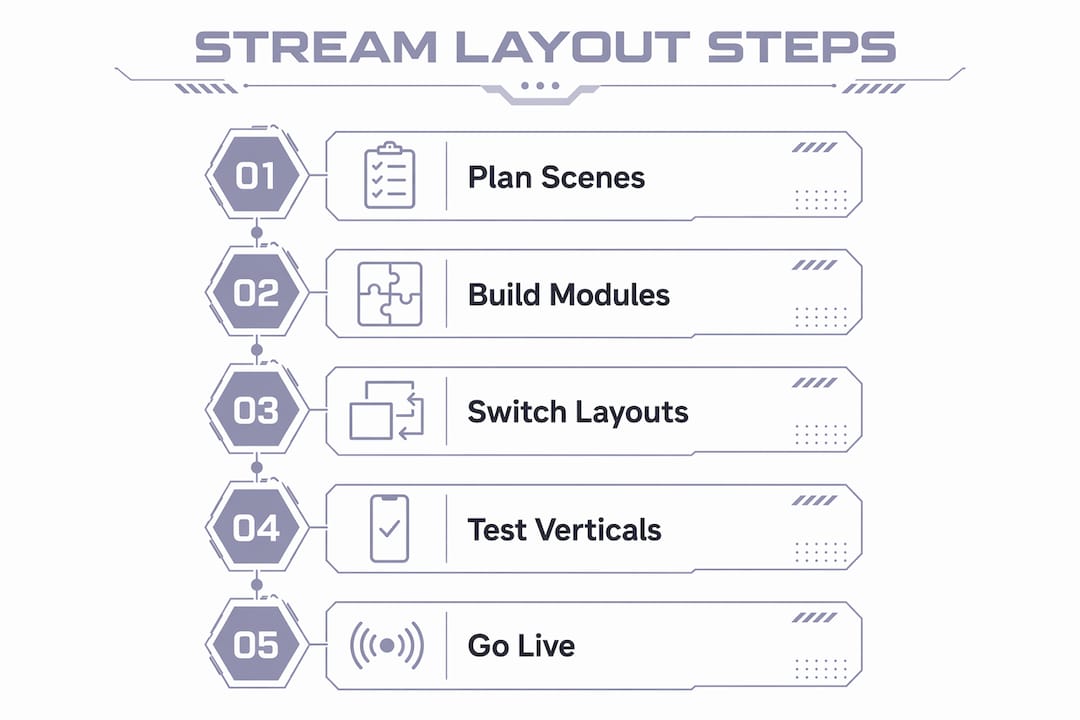
Switching layouts every 7-10 minutes sustains viewer attention by giving the broadcast a sense of movement and structure. Think of it like editing a video. Static streams feel like watching a security camera feed.
Pro Tip: Plan your layout sequence before you go live. Map out which scene type fits each segment of your stream, just like a show rundown.
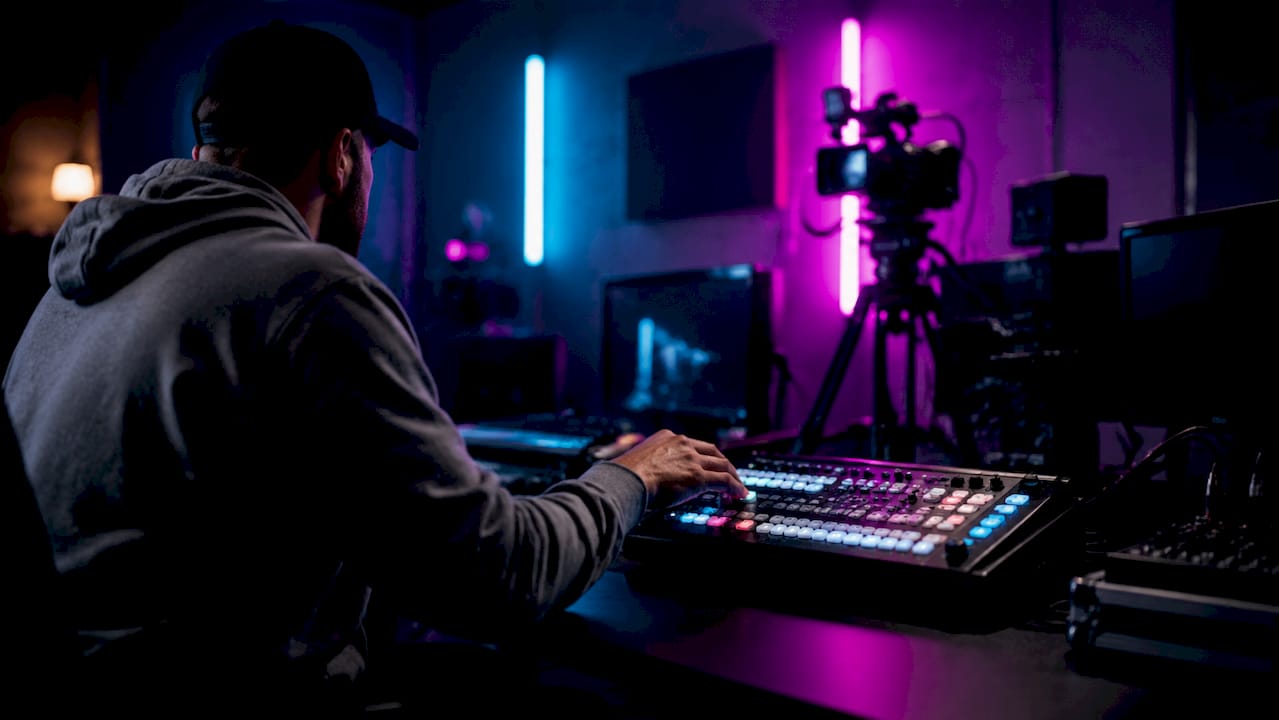
How does YouTube's dual-format streaming feature work?
YouTube supports simultaneous dual-format streaming, delivering both a 16:9 horizontal stream and a 9:16 vertical stream from one broadcast source. This is the biggest structural shift in the YouTube streaming interface in years. Your layout now needs to work on a widescreen monitor and a phone screen at the same time.
The automatic vertical crop is center-weighted. YouTube takes your horizontal frame and cuts the left and right edges to produce the vertical version. That sounds fine in theory, but it creates real problems in practice. If your webcam sits in the lower-left corner, the vertical crop may cut you out entirely.
Here is what the dual-format setup affects:
- Content placement: Keep your face and key graphics within the center third of your horizontal frame so the vertical crop captures them cleanly.
- Chat and alert overlays: Wide horizontal widgets get clipped in vertical view. Use narrow overlays positioned at the top or bottom of the frame.
- Discovery reach: Mobile vertical streams appear in the Shorts feed, which has over 70 billion daily views. That is a significant discovery channel for live content.
- Unified metrics: YouTube shares chat and concurrency data between both stream formats, so your community stays in one place regardless of which version viewers watch.
For creators who want full control over the vertical layout rather than relying on the auto-crop, plugins like Aitum or Meld Studio let you build a separate 9:16 canvas inside OBS. That gives you a purpose-built vertical scene with its own framing, overlays, and text placement. It takes more setup time, but the result looks intentional rather than cropped.
What cinematic design techniques make streams look professional?
Professional YouTube live stream layout borrows directly from film production. The goal is to guide the viewer's eye, signal importance through composition, and keep the visual experience clean enough that nothing distracts from the content.
Streamers should treat their layouts like film sets, with a clear camera hierarchy that tells viewers where to focus. Here is how that breaks down in practice:
- Three-point lighting: A key light, fill light, and backlight separate you from the background and add depth. Neon strips or colored panels behind you act as motivated light sources that also reinforce your brand color.
- Hero and detail cameras: Your main webcam is the hero shot. A second camera on your hands, desk, or setup acts as the detail shot. Cutting between them mimics the editing rhythm of a produced show.
- Overlay placement: Position chat widgets, alert banners, and donation bars along the edges of the frame. Centering overlays competes with your content and creates visual clutter.
- Scene switching as pacing: Creative scene switching mimics narrative pacing in cinema, sustaining viewer interest through deliberate layout changes tied to broadcast segments. A transition to a full-screen layout signals something important is happening.
Pro Tip: Less is more with overlays. Pick three to five elements maximum per scene. If a widget does not serve the viewer, remove it.
Keeping overlays uncluttered directly improves viewer retention by reducing visual fatigue. A clean layout with strong branding reads as professional. A layout packed with widgets reads as amateur, regardless of how good your content is.
How can you manage and customize stream layouts efficiently?
OBS Studio and Streamlabs are the two most widely used tools for building and managing YouTube stream layouts. Both support scene collections, source grouping, and plugin integration. The workflow you build inside these tools determines how fast you can switch layouts and how consistent your stream looks over time.
| Feature |
OBS Studio |
Streamlabs |
| Nested scenes |
Yes, full support |
Limited |
| Plugin ecosystem |
Large, open-source |
Smaller, curated |
| Vertical canvas |
Via Aitum plugin |
Via Meld Studio |
| Alert integration |
Manual setup |
Built-in |
| Performance overhead |
Lower |
Higher |
| Best for |
Advanced creators |
Beginners |
Nested scenes, also called modules, are the most underused feature in OBS. A nested scene is a reusable layout component you embed across multiple scenes. Fix a bug in the module, and every scene using it updates automatically. This saves significant time when you manage five or more layout variations.
For dual-format streaming, the cleanest workflow uses a multi-canvas setup. You build one scene collection for your 16:9 horizontal stream and a separate optimized collection for your 9:16 vertical stream. Plugins like Aitum handle the routing between both canvases inside a single OBS session.
Test your vertical stream layout on an actual phone before going live. What looks balanced on your monitor often looks cramped or off-center on a 6-inch screen. Position your webcam at the top of the vertical frame, keep your main content below it, and use narrow chat overlays on the edges or skip them entirely for mobile. You can also check out the OBS overlay setup guide from Neonstreamlab for a step-by-step walkthrough on integrating overlays cleanly into your scene workflow.
Key Takeaways
A professional YouTube stream layout combines dual-format scene design, cinematic overlay placement, and modular OBS workflows to engage viewers on both desktop and mobile.
| Point |
Details |
| Use all seven scene types |
Switch between Spotlight, PiP, Grid, and others every 7-10 minutes to maintain viewer interest. |
| Design for dual-format |
Keep key content in the center third of your frame so YouTube's vertical crop captures it correctly. |
| Apply cinematic techniques |
Use three-point lighting, a hero camera, and edge-placed overlays to create a clean, professional look. |
| Build with nested scenes |
Use OBS nested scenes to reuse layout modules and keep updates consistent across all your scenes. |
| Test on real devices |
Always preview your vertical layout on an actual phone before going live to catch framing issues. |
Why layout planning changed how I think about streaming
Most creators I talk to treat their stream layout as a one-time setup task. They build it once, maybe tweak the colors, and leave it alone for months. That approach produces streams that feel static and forgettable, even when the content itself is great.
The shift that made the biggest difference for me was treating layout changes as narrative beats, not technical chores. When I move from a PiP scene to a full Spotlight layout, I am telling the viewer that something important is about to happen. That deliberate pacing keeps people watching through transitions instead of tabbing away.
The other thing I would push back on is the instinct to add more overlays to look more professional. A patchwork of widgets, alerts, and panels does the opposite. The streams that look genuinely cinematic are usually the ones with the fewest elements on screen at any given moment. Restraint is a design skill.
Finally, do not underestimate the vertical layout for mobile viewers. The Shorts feed discovery potential is real, and most creators are still leaving it on the table by relying on YouTube's auto-crop. Building even a basic optimized vertical scene puts you ahead of the majority of live streamers right now. Document your setup in a simple text file or screenshot folder. When something breaks mid-stream, you will thank yourself for having a reference.
Upgrade your YouTube stream layout with Neonstreamlab
Your layout structure is only as strong as the visuals you put inside it. Neonstreamlab builds animated overlay packs specifically for YouTube creators who want their streams to look like productions, not webcam recordings.
Every pack includes animated overlays, alerts, and panels that drop straight into OBS or Streamlabs without any design work on your end. Themes range from cyberpunk and dark anime to sci-fi and ocean environments, so your visual identity actually matches your content. Over 192 streamers have rated Neonstreamlab 4.9/5, and every pack includes original audio that is copyright-safe. Browse the full overlay pack collection to find your style, or grab something from the free screen makers if you are just getting started.
FAQ
What is a YouTube stream layout?
A YouTube stream layout is the visual arrangement of cameras, overlays, alerts, and graphics displayed during a live broadcast. It typically consists of multiple scene types that creators switch between throughout the stream.
How does YouTube's vertical streaming work?
YouTube automatically generates a 9:16 vertical stream from your 16:9 horizontal broadcast using a center-weighted crop. Creators who want full control can use tools like the Aitum plugin inside OBS to build a dedicated vertical canvas.
How often should you switch stream layouts?
Switching layouts every 7-10 minutes is the standard recommendation for maintaining viewer engagement. Each switch signals a new segment and keeps the broadcast from feeling static.
What tools do you need to manage YouTube stream layouts?
OBS Studio and Streamlabs are the primary tools for building and switching YouTube stream layouts. Plugins like Aitum extend OBS to support dual-format vertical streaming from a single session.
Why does overlay placement matter in a stream layout?
Cluttered overlays cause visual fatigue and push viewers away. Positioning widgets along the edges of the frame and limiting on-screen elements to the most useful ones keeps the layout clean and the content front and center.
Recommended
Article generated by BabyLoveGrowth
Get matching overlays from NeonStreamLab
At NeonStreamLab we design premium animated overlay packs that already put these principles into practice - balanced colour, clean hierarchy and a cohesive look across screens, alerts, webcam frames and panels. Browse Cyberpunk overlays, Neon overlays, Anime overlays to find a theme that fits your channel, like our Cyberpunk pack.
Every pack works with OBS, Streamlabs and StreamElements, uses original copyright-free audio, and downloads instantly. Want to try before you buy? Try our free screen makers and see how a matching look feels on your stream.